
Menus and MATLAB Setup
What each item in the Modelify and Atlas menus does, and how to set up MATLAB for Modelify and for S-Function conversion.
The Modelify Menu is located in the top menu bar and provides quick access to Modelify functionality.
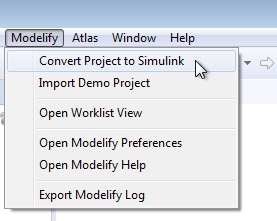
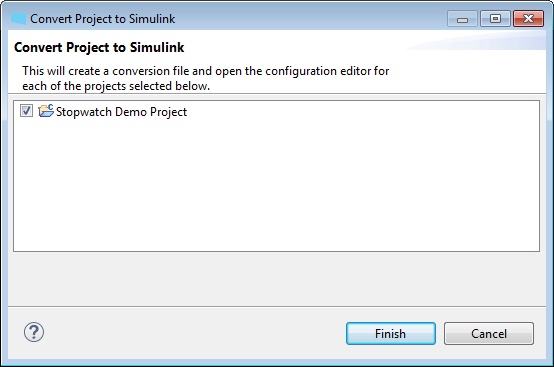
Convert Project to Simulink
This option is used to create a new conversion file for the selected projects. In the dialog, select the projects to be converted and then click Finish.
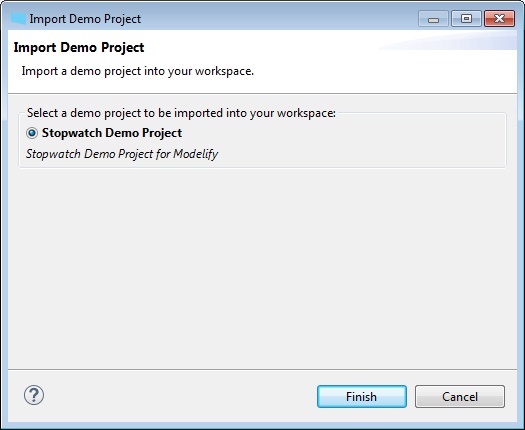
Import Demo Project
This option is used to import a demo project to use with Modelify. Select the demo project to import and then click Finish.
Open Worklist View
This option is used to open the Modelify Worklist View. The Modelify Worklist View helps to perform the required actions to address conversion problems. For more details about the Modelify Worklist View, see the Modelify Worklist View page.
Open Modelify Preferences
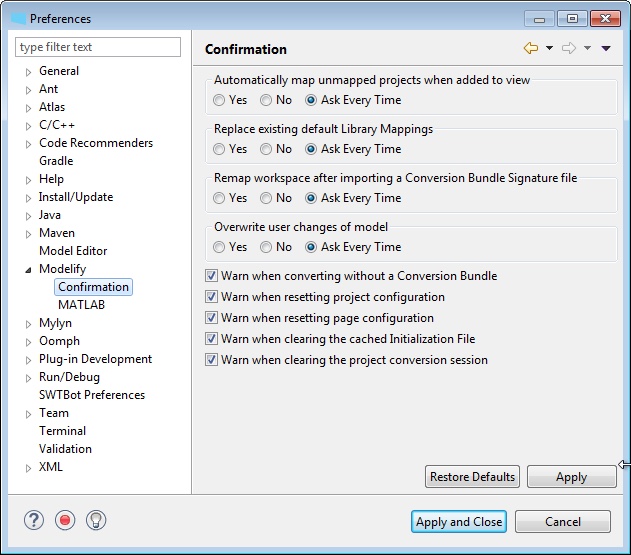
This option is used to open the Modelify preference pages. The Modelify preference pages are used to configure the MATLAB installations and to choose when Modelify will prompt the user for confirmation of an action. For more details about Modelify preference pages, see the Modelify Confirmation and MATLAB Installation pages.
Open Modelify Help
This option is used to open the Modelify Help page. Modelify help page provides the helpful documentation on how to set up and use Modelify.
Export Modelify Log
This option is used to export the Modelify Log file as a ZIP file. This log file can be sent to EnSoft Support and will not contain any proprietary information.
11 Modelify Confirmation
Before performing some operations that can not be easily undone, Modelify will prompt the user to confirm that they would like to perform the operation. The prompt dialog will have an option to not prompt the user again for the same operation. This preference page can be used to configure the operations for which Modelify will or will not prompt the user.
This preference page can be opened by going to Modelify > Open Modelify Preferences.
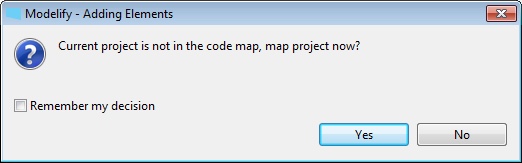
The image below shows the prompt dialog displayed when opening a modelify.config project conversion file for a project that has not yet been mapped by Atlas. If you check Remember my decision in the prompt dialog and click any of the Yes/No buttons, then the prompt dialog will not be shown the next time the same operation is performed.
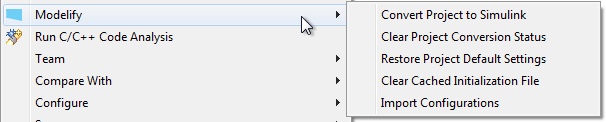
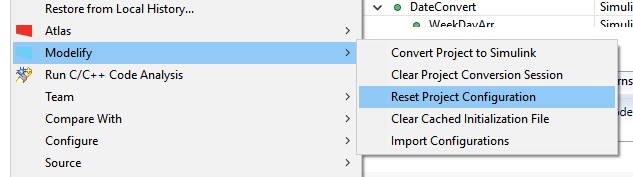
Right-clicking on a project in the Project Explorer brings up a right-click menu with the Modelify menu. The image below shows the 5 options from the Modelify right-click menu. If the selected project does not have a config.modelify file, only the Convert Project to Simulink option is available.
Convert Project to Simulink
This menu will create a new conversion file for the selected project(s). If a selected project is not a C/C++ project, a dialog will offer to convert it into C/C++ project. After the conversion file is created, the other 4 menu options become available.
For more information on using the Modelify editor to perform configuration and conversion see Modelify configurations.
Clear Project Conversion Status
This menu will clear project's conversion status. Conversion status of all functions in the selected project(s) will be set back to Staged. This will not affect any models or other files that have been created.
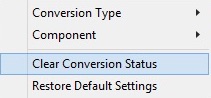
You also can clear conversion status for selected functions. To clear the conversion status of selected functions, right-click on the functions in the Conversion page of Modelify editor and then click on Clear Conversion Status.
Restore Project Default Settings
This option will restore project's configuration back to default settings. Any customized settings will be removed.
The Modelify editor also provides buttons for clearing the configuration of the project or page. The buttons are available in the top-right corner of each page. The left button will reset the configuration for the current page and the right button will reset the configuration for the entire project.

Clear Cached Initialization File
The Initialization File is created to store necessary constants and types as an M script or Data Dictionary file. This menu will clear the types and constants used in the initialization files in the selected project. After doing this, converted models that require an entry in the Initialization File will not simulate unless they are re-converted.
Import Configuration
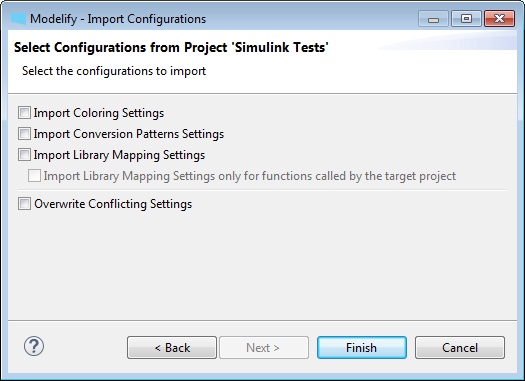
This option is used to import Modelify configuration from another project into the selected project. An Import Configuration wizard will open to select the project that the configuration is imported from. Below image is a screenshot of the first page in the wizard.
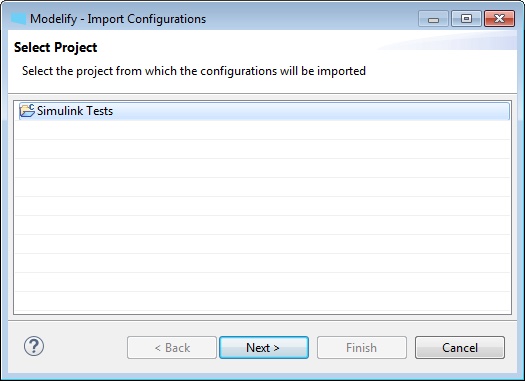
After selecting the project, click Next. In the next page, you can select which configuration will be imported. These options are Coloring, Conversion Patterns, and Library Mapping. Also you can select if you want to overwrite the conflicting setting. Click Finish to perform the import.
13 Resetting Configuration
It is possible to reset the configuration for a Modelify project or for a single page in the Modelify editor. Doing this will reset the configuration back to the default values. This operation can not be undone.
The project's configuration can be cleared by right-clicking on the project in the Project Explorer and clicking on Modelify > Clear Project Configuration.
The Modelify editor also provides buttons for clearing the configuration of the project or page. The buttons are available in the top-right corner of each page. The left button will reset the configuration for the current page and the right button will reset the configuration for the entire project.
Modelify relies on Atlas to analyze the C code. Atlas creates a representation of the code in a process called mapping. To prepare a project for mapping, follow the instructions in the Project Configuration section.
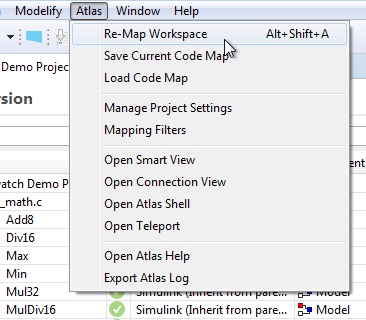
A project will have to be mapped at least once, but also any time the code is changed. To map the code, select Atlas from the main menu, and then select Re-Map Workspace. To see the list of projects that are mapped and to manage that list, select Atlas, and then select Manage Project Settings. Mapped projects are listed on the right hand side.
15 MATLAB Installation
In order to perform a conversion you need to first configure at least one MATLAB installation in Modelify. Modelify supports all MATLAB versions starting from R2011b.
To open the MATLAB Installation preference page, Click Window > Preferences and select the MATLAB page under the Modelify option in the left tree.
Then, you can either click the Auto Detect button for Modelify to detect all MATLAB installations on your system, or you can click the Add button to manually configure a specific MATLAB installation.
The default MATLAB installation can be selected in the dropdown labeled "Default Target Install". The installation chosen in this dropdown will be used by Modelify unless a project's configuration selects a different installation.
Click the Apply button to save the MATLAB installations.
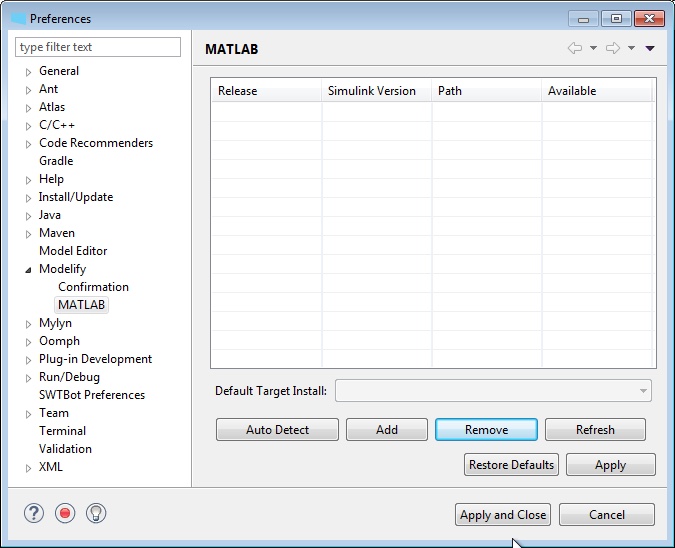
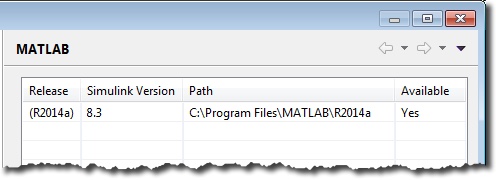
The image below shows a successful configuration of R2014a.
16 MATLAB setup for S-Function conversion
In order to convert a C function to an S-Function in Modelify, you have to ensure that a C compiler is set up in the MATLAB installation Modelify is using.
Check whether a C compiler is set up
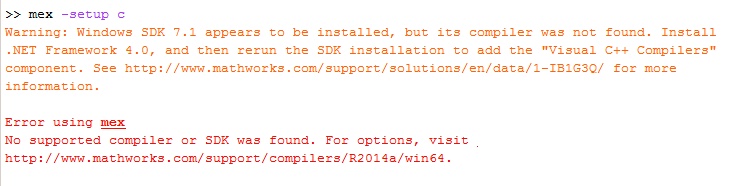
Type "mex -setup c" on a MATLAB Command Window to determine whether a C compiler is set up. You will get a message indicating whether a C compiler is set up. If a compiler is not set up, it will show a list of installed compilers so that you can pick one. If no supported compiler is installed on your system, then it will provide a link to a document that lists supported and compatible compilers for your MATLAB installation.
Below is a sample message shown when no supported compiler is found.
Setup a C compiler
As indicated in the previous section, the "mex -setup c" command will return a link to a document that lists the supported and compatible compilers for your MATLAB installation.
A list of supported compilers for all MATLAB versions can be found at https://www.mathworks.com/support/requirements/previous-releases.html. The page includes details about compilers for each specific OS, and in some cases it provides a download link for the compiler as well as installation instructions.
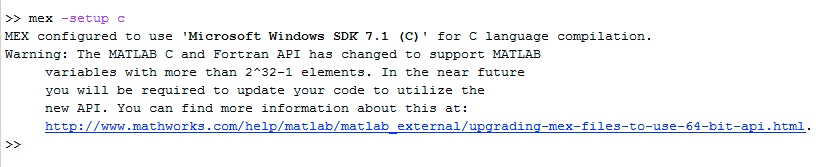
Below is a sample message shown when a C compiler is set up.
For further information about setting a C compiler see the Change Default Compiler MATLAB help page.
Have a question or want us to fix something?
Thank you.
We have your note about this page.