
How to Compare Simulink Models: A Step-by-Step Guide
Open two versions of a Simulink model in SimDiff and walk through every difference between them.
There are two types of comparisons: 2-way and 3-way. 2-way is what most people think of. This page covers only 2-way comparison, since it is easier to start with. Most of the time, a version control system uses a 3-way comparison or merge. See three-way merge, step by step, or continue here.
Simple 2-way comparison
If you work at an automotive, aerospace, or defense company, chances are you already have SimDiff. If not, request a SimDiff trial.
How to perform a 2-way comparison
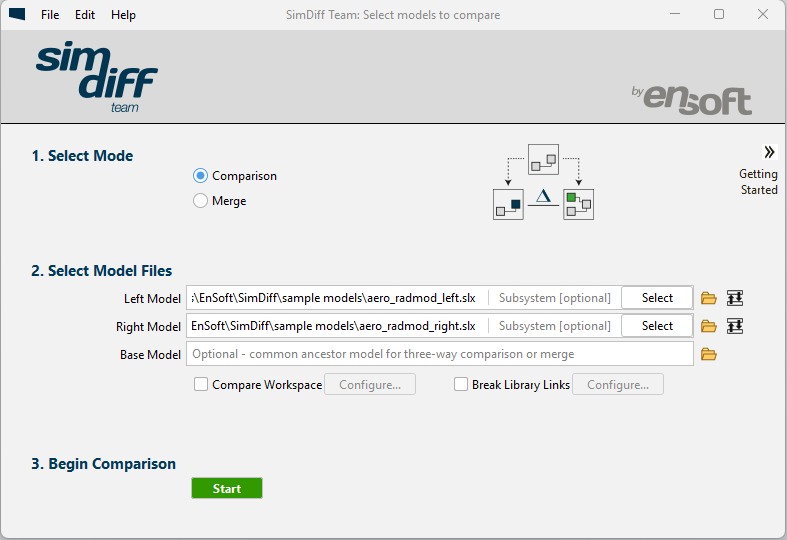
- Open SimDiff.
- Select Comparison mode.
- Use the browse button or drag and drop the files into the left and right model fields.
- Click the Start button.
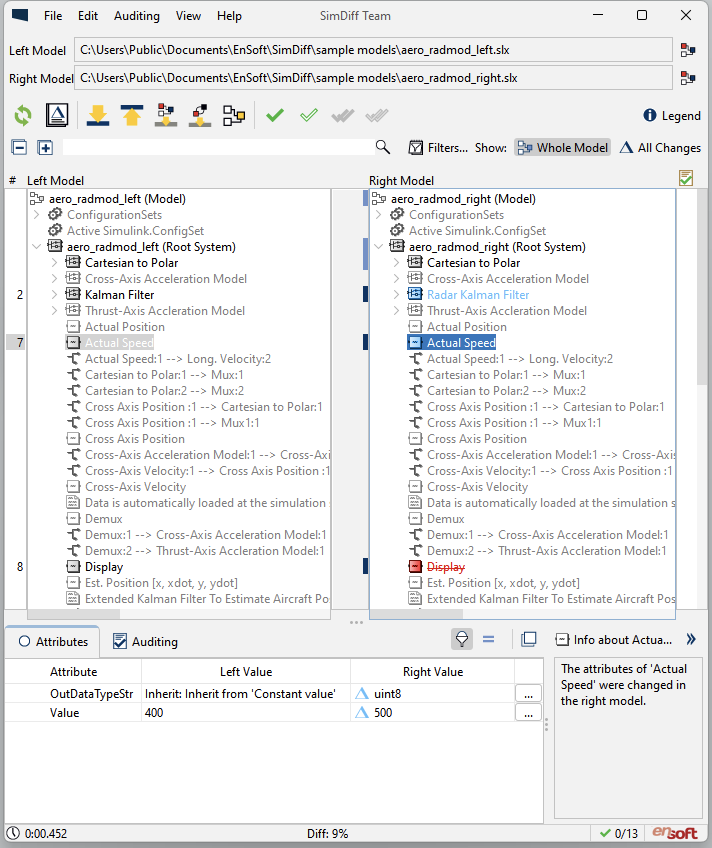
SimDiff compares the models and shows both model hierarchies with the differences highlighted. Each difference is numbered and colored. By default, SimDiff uses blue for changes, red for deletions, and green for additions.
When you click a changed element, individual attribute differences appear in the Attributes view at the bottom.
SimDiff provides different options to make it easy to navigate through the differences.
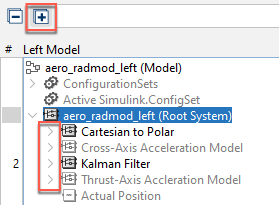
By default, it shows subsystems at the top level collapsed. Select the top system and use the Expand-all button to expand every subsystem underneath, then scroll the model. This can be useful with small models.
Other options make large models easier to navigate. Use the navigation toolbar buttons to locate the next or previous difference.

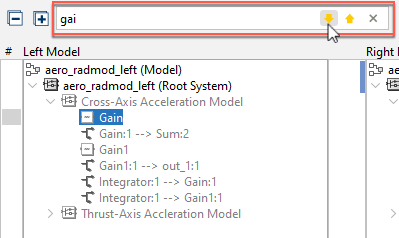
You can also search for an element. The model tree filters to elements that match the search term. Use the inner navigation buttons to step through the matches.
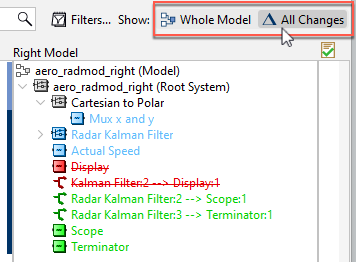
By default, SimDiff shows the whole model, including unchanged elements. Switch to a view of only the differences by clicking the All Changes button.
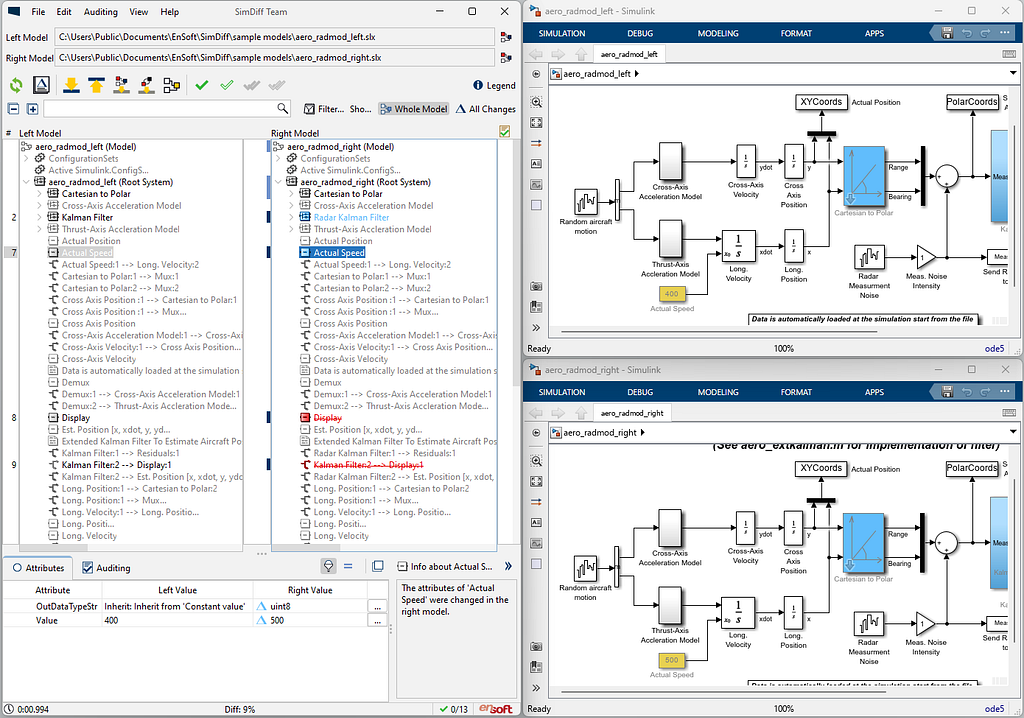
SimDiff integrates with the Simulink Editor. You can view model changes side by side in their graphical context. Double-click any element in SimDiff’s tree view and Simulink locates and highlights it.
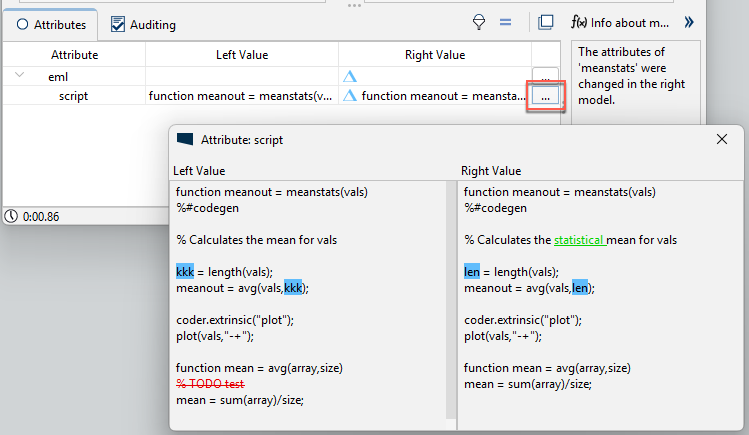
Click the ellipsis button on an attribute value to see a larger, color-highlighted view of the change.
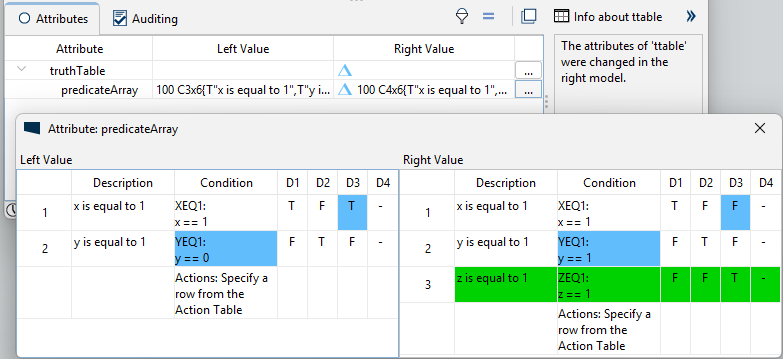
Some attributes use a custom view. The condition table and the action table of a Truth Table are shown in a color-highlighted table that resembles the Stateflow editor.
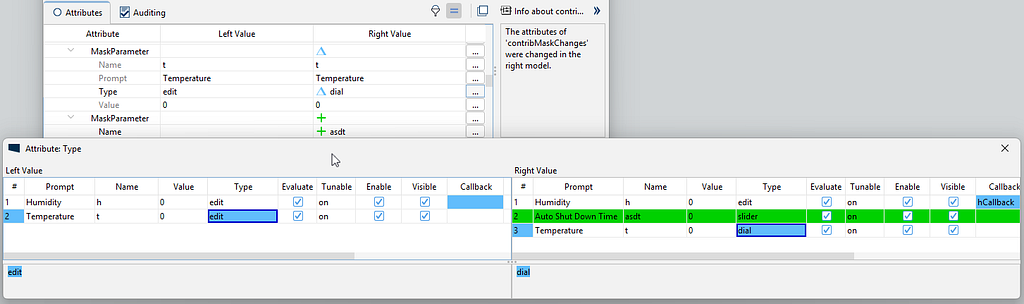
Changes in mask parameters are also shown in a color-highlighted table. Click the ellipsis button for any mask parameter attribute to show the entire table.
For more details, see the SimDiff page, or contact us.
Have a question or want us to fix something?
Thank you.
We have your note about this page.