

How to set up a C project in Modelify, convert its functions into Simulink models, and refine the conversion with reductions, options, and the worklist.
Watch the overview first, then follow Getting Started below. The reference is on four more pages.
1 Introduction
Modelify converts large C code into Simulink models. Instead of a verbatim conversion, Modelify transforms low-level logic from C into higher level constructs in Simulink. This yields models that are maintainable, closely follow the MAAB modeling guidelines, and are more natural to a Simulink user.
Modelify is built on top of Atlas, which converts C code into an XCSG, a rich, semantically-precise graph representation which includes control flow, data flow, and call structure.
The image below describes the Modelify architecture.
This user manual will demonstrate how to use Modelify to convert a demonstration project in the Getting Started section, while the Reference section covers the tool in depth.
2 Getting Started
Modelify is designed to work with the engineer to iteratively refine the conversion until it is complete. The overall process consists of the following steps:
- Configure project
- Check Modelify Worklist View
- Tune conversion options
- Convert
- Review, tune, and re-convert
The last step should be repeated until you are satisfied with the conversion. Finally and optionally, you can edit the model in the Simulink editor to perform final adjustments.
The image below describes the overall process.
Configure project
Modelify is an extension of Atlas and the Eclipse platform, so the first step to working with C code is to import it into a C project in Eclipse.
Follow the steps below to import your code.
Start Modelify
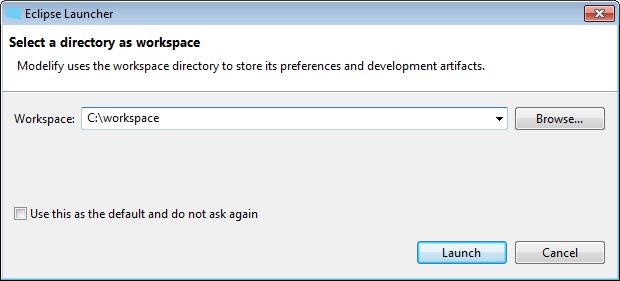
Start Modelify by executing the modelify.exe file located in the Modelify installation directory. Modelify will ask you to choose a directory for your workspace, which is simply the directory where your projects will be stored.
The first time that Modelify opens, it will show the welcome screen. Click the X button in the Welcome tab to open the workbench.
Import C Project
To follow along with this section, we will use a demonstration project. After completing this Getting Started section, you may refer to the Project Configuration section for instructions on how to import your own code.
To import the demonstration project:
- Click on Modelify > Import Demo Project in the Modelify Menu.
- Select Stopwatch Demo Project and click on Finish in the Import Demo Project dialog.
This will import the Stopwatch Demo project and will automatically create the modelify.config project conversion file for the project.
Create Project Conversion file
If you are creating a new project, it is necessary to create the project conversion file manually. Once the project is created, click on Modelify > Convert Project to Simulink. Then select the project in the dialog and click on Finish.
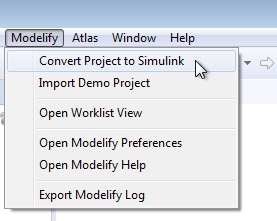
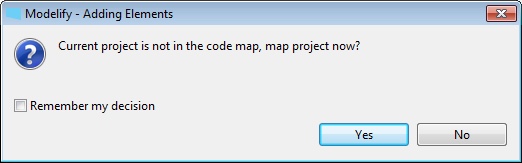
A modelify.config project conversion file is created and opened in the project conversion editor. Since the project has not yet been mapped by Atlas, Modelify shows a dialog to confirm whether the project should be mapped. Click Yes to proceed.
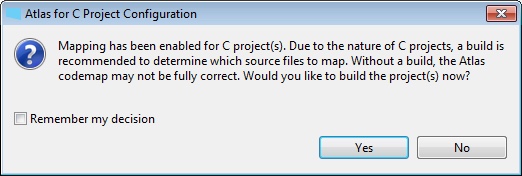
If the project has not been built yet, Atlas will ask whether you would like to build the project before mapping it. A successful build helps Atlas to create a more precise codemap. The Project Configuration section provides information to help you compile your project in eclipse. However, for the purpose of this demonstration you can skip the build step, so click on No.
Select conversion options
You can set conversion options in the Project Conversion Editor.
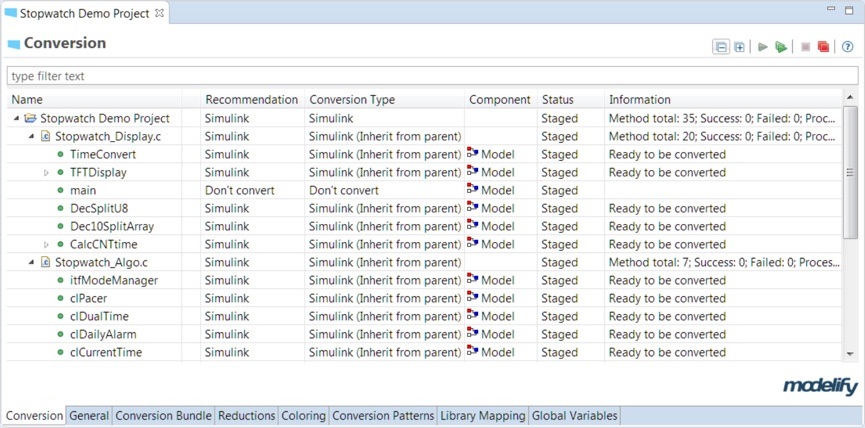
The editor consists of several tabs that allow you to set up conversion options and perform the conversion.
When the Conversion Editor is opened for the first time, Modelify will first analyze the code to choose the best values for Recommendation, Conversion Type and Component columns. Conversion Type and Component columns settings can be modified at any time.
For a detailed explanation of the editor, refer to the Modelify Configuration section.
In order to perform a conversion you need to first configure at least one MATLAB installation in Modelify. Refer to the MATLAB Installation section for detailed instructions on how to configure MATLAB installations for Modelify.
Modelify will store the generated models under a Modelify subfolder in the project. You can change the model storage directory from the General tab.
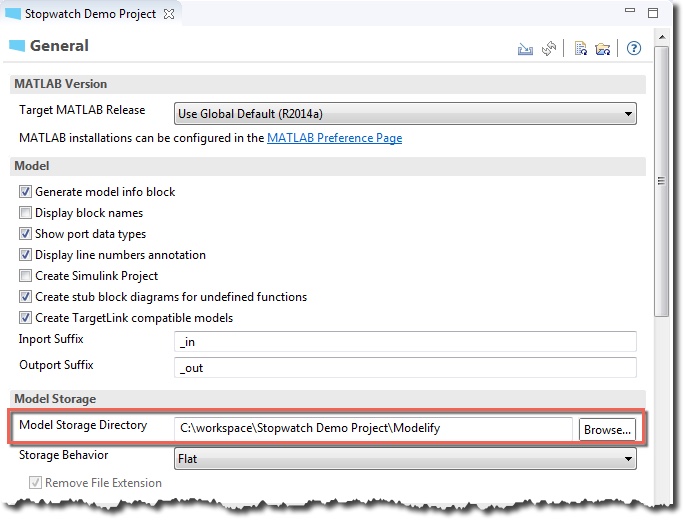
Check Modelify Worklist View
The Modelify Worklist view lists conversion messages that could affect the conversion. It includes messages provided by Atlas, found during the code mapping, and messages provided by Modelify, generated during the conversion process.
Before the initial conversion, you should check whether there are messages reported by Atlas during the mapping process.
For example, suppose that a message is about references to missing code (e.g. missing function definition). You will have to add the missing definitions and then re-map with Atlas so that Modelify can reanalyze the code. To re-map the code, select Atlas from the main menu, then select Re-Map Workspace.
For details about this view refer to Modelify Worklist View.
Modelify/Simulink limitations
One category for problems corresponds to Modelify limitations. These are limitations in Modelify that could prevent the user from performing a desired conversion. For example, conversion type cannot be set to Simulink for a function if it contains a loop. This occurs because Modelify does not yet perform the needed control flow and data flow analysis to create the required Simulink blocks.
Another category corresponds to MATLAB limitations. As the term indicates, these are limitations imposed by MATLAB or any of the Simulink/Stateflow toolboxes. For example, a recursive function cannot be converted to Simulink or Stateflow. Even if Modelify can successfully convert to models the functions involved in the recursion, Simulink shows an error message when it detects a model reference cycle.
Conversion limitations found in your projects will be added to the Modelify Worklist view as they are found during conversion. Refer to the Conversion Limitations section for a detailed list of known limitations.
Convert
The top-right toolbar in the Conversion tab provides two buttons to perform conversion.
-
 converts all functions in the project
-
 converts the selected element
If the selected element contains descendant nodes then all descendants will be converted. Note that called functions are also converted if they have not been converted yet.
Thus, to convert an entire project, select the project node in the Conversion tab
and click the button.
If you have a Modelify trial and have not yet created a conversion bundle for your own project, then Modelify will show the below information message indicating that functions will be converted to stub models. A stub model is a model that only contains Inports and Outports.
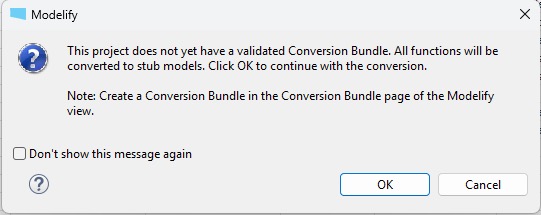
Click OK to proceed with the conversion.
Note that you won't be able to access the Simulink models until you have properly created a conversion bundle. See Conversion Bundle section for steps to create a conversion bundle.
Review, tune, and re-convert
You can review conversion results by looking at the Status and Information columns. They will indicate whether a conversion was successful or if there was any problem.
There are four possible outcomes:
- Conversion done and model simulates
- Conversion done but model does not simulate
- Conversion failed and a partial model was created
- Conversion failed and no model was created
Many of the actions below require opening the generated model. Note that you will have access to the model only if you have created a conversion bundle (see Conversion Bundle section), otherwise you will have access to a stub model. One exception to this is the case where you work with the included Stopwatch Demo Project, in which case creating a conversion bundle is not required to access the models.
1) Conversion done and model simulates
To open a model for a converted function, double click the function node or right click and select Open Model from the context menu.
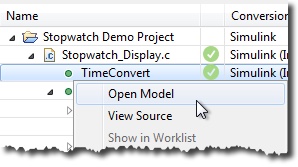
You can use the Update Diagram feature from Simulink to determine whether the converted model is ready for simulation. If Simulink detects any problem, it will show it in the Diagnostic Viewer.
Modelify will automatically perform an Update Diagram action when opening the model if Show port data types setting was enabled (see Model section). If not, you can manually perform it by clicking Simulation > Update Diagram in the Simulink window.
2) Conversion done but model does not simulate
In this case Modelify indicates that the model was successfully converted but it might require one or more minor adjustments for it to simulate. The messages in the Simulink Diagnostic Viewer should provide suggestions and fixes for diagnostic error and warning messages.
The model can manually be edited to perform the required tweaks.
3) Conversion failed and a partial model was created
When Modelify encounters a problem during the conversion, depending on its severity, it might decide to record the problem and move forward with the conversion. In this case a partial model is generated.
A warning or error message will be included in the Information column of the Conversion tab. It also includes an ellipsis button next to the message that will take you to the Modelify Worklist view. This view will provide more information about the problem and possible workarounds.
4) Conversion failed and no model was created
Some problems might prevent Modelify from moving forward with the conversion, and thus, a model might not be generated. To get more information about the conversion problem:
- Click the ellipsis button in the Information column to open it in the Modelify Worklist view
- Double click the entry in the view to open the dialog that shows details about the problem
Manually edit models
You might decide to manually edit the models in cases 2 and 3 above. Now, you might wonder what happens if you re-convert the function - will the changes you have done be overwritten?
Modelify detects this scenario to prevent manual changes from being overwritten. That is, before converting a function, it will detect whether a model for the function was already generated. If so, it will check whether the model was manually edited by the user, in which case it will prompt to overwrite the model before proceeding with the conversion.
Tune Conversion
For successful conversions, you can review the model and decide whether it fits your organization modeling guidelines. Modelify generates models that closely follow MAAB modeling guidelines. You can enable/disable Modelify reductions which improve or reduce the model to achieve your desired model style.
For failed conversions, you can access the Modelify Worklist view that should provide the necessary information to proceed with the conversion.
After performing the desired tuning, you can select the set of functions to be re-converted and re-convert them. You should repeat this tune-reconvert process until you are satisfied with the conversion.
Modelify User Manual
Copyright (c) 2017-2023 EnSoft Corp. All Rights Reserved.
Under the copyright laws, this manual may not be copied, reproduced, or redistributed, in whole or part, without the written consent of EnSoft. Your rights to the software are governed by the accompanying end user license agreement. Every effort has been made to ensure that the information in this manual is accurate. EnSoft is not responsible for printing or clerical errors.
EnSoft Corp.
2625 North Loop Drive Suite 2580
Ames, IA 50010 USA
Phone: +1-515-296-3253
Email: contactus@ensoftcorp.com
All other company and product names mentioned in this document are trademarks of their respective companies. Mention of third-party products is for informational purposes only and constitutes neither an endorsement nor a recommendation. EnSoft assumes no responsibility with regard to the performance or use of these products.
Have a question or want us to fix something?
Thank you.
We have your note about this page.