
Configuration
Set up a C project for Atlas and Modelify, then choose how Modelify converts it into Simulink.
3 Project Configuration
Modelify uses Atlas to analyze your C code. In order to map your C code, Atlas needs the same settings that the compiler needs to build your project. The following guide explains common ways to import an existing C code base into an Eclipse CDT project, and to prepare it for use with Atlas and Modelify.
Install a C compiler
The later sections assume a C compiler is installed in your system.
If you already have a C compiler installed then you can skip this section. Otherwise you can install an open source C compiler using these steps.
Install gcc (MinGW) and make from MSYS2
- Follow the steps 1-5 of the Installation section of https://www.msys2.org/
- We recommend chosing an installation path without spaces. The default is
C:\msys64 - Install gcc make. Step 5 above opened an MSYS2 terminal. Run the following command to install the UCRT64 version of the tools:
pacman -S mingw-w64-ucrt-x86_64-gcc make
Configure Modelify to use a C Compiler
If the compiler and build tool installation are not already on the PATH environment variable, you can configure Modelify to find the compiler. The following instructions assume you installed the MinGW
compiler in the previous section.
- Run Modelify
- Click Window > Preferences
- On the dialog that opens, select C/C++ > Build > Environment
- Create a variable
PATHpointing to the MSYS2/MinGWbinfolder. For the UCRT64 version of the tools, the default installation location isC:\msys64\ucrt64\bin - Verify that the radio button at the bottom is set to "Append", then apply preferences
Install Toolchain Support (Optional)
Modelify is distributed with support for gcc and gcc-based cross compiler toolchains. If the project requires a special compiler (other than gcc), you may need to install additional CDT features to support your toolchain.
Import C project into Eclipse
- If the project has a Makefile:
- From the File menu, select Import.
- In the popup dialogue, expand C/C++, select Existing Code as Makefile Project, and click Next.
- Enter a project name and indicate the directory to import. Set the Toolchain for Indexer Settings. For cross compilation with gcc, select Cross GCC. Otherwise, choose an installed compiler of your preference (e.g. MinGW GCC).
- Click Finish.
- Ensure the Makefile will be used to build the project
- Right-click on the project and click Properties
- Expand C/C++ Build and select Tool Chain Editor.
- Set the Current builder to Gnu Make Builder
- Click OK
- If the project does NOT have a Makefile:
- From the File menu, select New, then Other... .
- In the popup dialogue, expand C/C++, select C Project, and click Next.
- Expand the Project type Executable, and click Empty Project.
- Enter a project name and click Finish.
- Right-click on the project and select Import.
- In the popup dialogue, expand General, select File System, and click Next.
- Enter the parent directory, select files to import, and click Finish.
- Make adjustments to the include paths and preprocessor directives as needed. Right-click on the project, folders, or files, and select Properties.
- In the popup dialog, expand C/C++ Build
- Select Settings to add include paths and preprocessor directives as needed. See also: CDT Help.
- Select Tool Chain Editor
- Select desired tool chain under "Current toolchain:" option (e.g. MinGW GCC)
- Ensure "Current Builder:" is set to "CDT Internal Builder"
Configure C project for Atlas
At this point, your C project may already be configured correctly. In order for Atlas to obtain compiler settings (such as include paths and preprocessor directives), the CDT must be able to build your C project and observe invocations of your compiler. Review the steps below to ensure that Atlas can extract compiler information from the build process.
If your project uses a gcc-based cross compiler, configure the project to use it (instructions adapted from stackoverflow.com).
- Right-click on the project and select Preferences.
- Ensure the project is configured to use the Cross GCC Tool Chain.
- Expand C/C++ Build and select Tool Chain Editor.
- Set the Current toolchain to Cross GCC.
- Click Apply.
- In the popup dialog, select C/C++ Build.
- Check Generate Makefiles automatically, but do NOT Apply.
- Under C/C++ Build, select Settings.
- Under the Tool Settings tab, select Cross Settings. Set the cross compiler settings for Prefix and Path. For example:
- Prefix: arm-none-eabi-
- Path:
<path to compiler>
- Select C/C++ Build again, uncheck Generate Makefiles automatically.
- Click Apply.
The steps below detail the changes necessary to accurately map the files built.
- If the project has a Makefile you have to perform an extra step to ensure that the CDT can observe invocations of your compiler during a build. Makefiles for large projects (such as Linux) suppress the full text of the invocation for readability, but there is usually a way to emit the invocations in verbose mode.
- Select C/C++ Build and then the Behavior tab. Select Use custom build arguments and adjust the Build arguments to produce verbose output. Common options include "V=1" or "VERBOSE=1".
- Configure Atlas to observe the build:
- Right-click on the project and select Properties.
- Select Atlas C Build.
- Under Build Commands, add the name of the compiler used by the project. Atlas will look for invocations of these compilers when parsing the output of the project's build.
- Under Source files to map, select Map only files in current build.
- Click OK.
Build
To accurately map the project, it must be built so that the compiler invocations can be observed.
- If your project uses a CDT-generated Makefile, or the Makefile has an "all" target
- Right-click on the project in the Project Explorer and select Build Project
- If your project has a hand-written Makefile
- Right-click on the project in the Project Explorer and expand Build Targets and select Create... .
- In Target name, enter the name of the build target. Click OK.
- In the Project Explorer view, expand the project, expand the Build Targets, and double-click on the target.
Map
After the project has been successfully built, it can be mapped with Atlas.
- Right-click on the project in the Project Explorer, expand Atlas, and select Enable Mapping.
- Select Atlas from the main menu, and select Re-Map Workspace.
Troubleshooting
If Atlas is unable to properly map the project, try the following:
- Clean and build the project and make sure the build output is being correctly parsed:
- Right-click on the project in the package explorer and select Properties.
- Look under Atlas C Build > Build Configuration File.
- If the Open button under Build Configuration File is grayed out, or if it says zero files were found, then Atlas was unable to detect the build configuration. Select C/C++ Build and uncheck Use default build command.
- Adjust the command to make the output verbose. Necessary flags may vary; common options include "V=1" or "VERBOSE=1".
- Clean and build the project. Check that Build Configuration File is nonzero.
- If Atlas's code map is still empty, it may be that the Makefile is improperly reporting changing directories.
- Right-click on the project in the package explorer and select Properties.
- Select C/C++ Build and uncheck Use default build command.
- Add the flag "--print-directory".
- Clean and build the project.
If you experience difficulty in setting up Atlas, please contact support@ensoftcorp.com for assistance.
4 Modelify Configuration
Modelify provides a multi-page Project Conversion Editor which allows you to perform several configurations. The editor also contains a Conversion page from which you can run the conversions and open the generated models.
To open the editor, double click the modelify.config project conversion file. To create a new conversion file, click on Modelify > Convert Project to Simulink from the top menu bar.
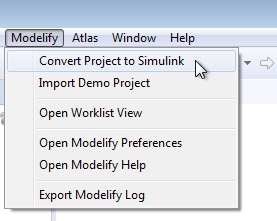
For more details about the Modelify Menu, see the Modelify Menu page.
The sections below describe each of the editor pages in detail.
- Conversion
- General
- Conversion Bundle
- Reductions
- Coloring
- Conversion Patterns
- Library Mapping
- Global Variables
Conversion
This page contains a toolbar, a search box, and a table that includes all functions found in the project. Functions are presented in a hierarchy given by folder and file they are contained in.
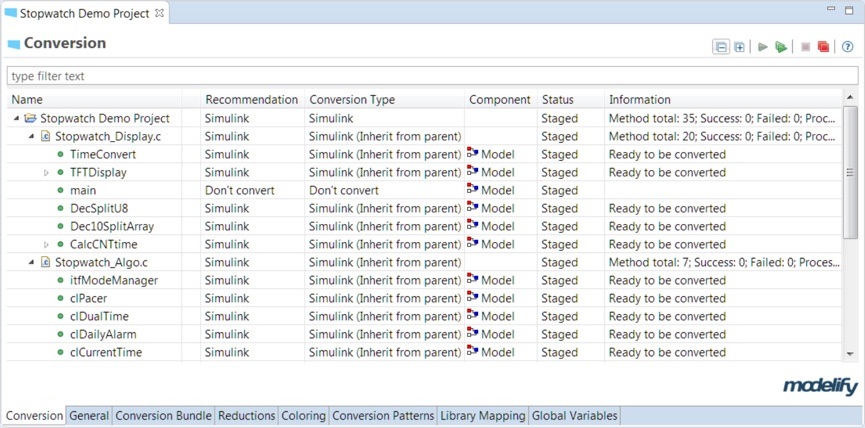
The table below describes the toolbar actions.
| Icon | Description |
|---|---|
 |
Collapse entire tree project structure shown in Name column |
 |
Expand entire tree project structure shown in Name column |
 |
Convert selected element/s. Note that if a container element is selected (e.g. project, folder or .c file element), then all functions under the selected container element will be converted |
 |
Convert all functions listed under Name column |
 |
Stop conversion of selected element/s. If a container element is selected it will stop conversion for all functions under the container |
 |
Stop conversion for all functions |
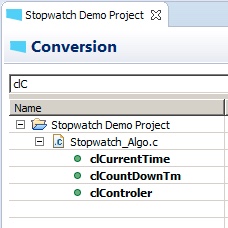
The search box allows you to easily locate elements under the Name column. It will automatically filter elements as you type in the text field and only show the ones that match the search term.
Elements that match the filter will appear in bold. If a container element matches the filter, then all its descendants are shown.
The main table contains the following columns:
- Name: shows the element name. An element could be the project root, a subfolder, a .c file or a function. A tree structure describes the hierarchy.
- Recommendation: indicates the recommended conversion type based on analysis of the code. Possible values are: Simulink, Stateflow, S-Function and Don't Convert. For descriptions about each of these options, see Conversion Type below. If Modelify recommends that a function should not be converted, then a message to explain the reason is shown when you hover over the Don't Convert value.
- Conversion Type: indicates type of conversion. Possible values are listed below.
- Inherit from parent: conversion type will be inherited from parent element
- Simulink: function will be converted to a Simulink model where function logic will be modeled with blocks and lines.
- Stateflow: function will be converted to a Simulink model that contains a Stateflow Chart block. Function logic will be modeled as a flow chart with junctions and transitions.
- S-Function: function will be converted to a Simulink model that contains an S-Function block. The S-function block will invoke the original C function code. This could require setting a C compiler in MATLAB. See MATLAB setup for S-Function conversion.
- Don't convert: select this option if you want to exclude a given function from conversion. A stub model - that is, a model that only contains Inports and Outports - will be generated if the function is called from some other function.
- Component: indicates which type of component must be created. Possible values are listed below.
- Model: a Simulink model will be created for the function
- Subsystem: the function will be converted to a Subsystem block. This is only possible when the function is called only once, then it can be converted as a Subsystem in the model corresponding to the caller function.
- Library Block: a library block will be created for the function and included in a library model. This is useful when the function is called from a number of places and should be shared. The library name can be specified (see User Library section)
- Status: indicates mapping/conversion status for the element. Possible values are listed below.
- Not found in Code Map: element has not been mapped by Atlas yet
- Staged: element was mapped by Atlas and it's ready to be converted
- Can not convert: indicates the element cannot be converted.
- Processing: conversion is in progress
- Canceled: conversion has been canceled by the user
- Ready for review: conversion is successfully done and model is ready for review
- Partially completed: for function element it indicates there was a problem during conversion and a partial model was generated. For container elements (folder, .c files), it indicates there was a conversion problem in at least one contained function
- Error: there was a problem during the conversion and no model was generated
- Information: it provides relevant information for some status values. For example, information about the error when a conversion failed.
As shown in the image above, there could be an extra column with an empty header between Name and Conversion Type. This column is included for license options that require a conversion bundle to generate models. Functions included in the bundle will include a check mark under this column.
You can apply an action on multiple elements by selecting the elements and selecting an option from a context menu.
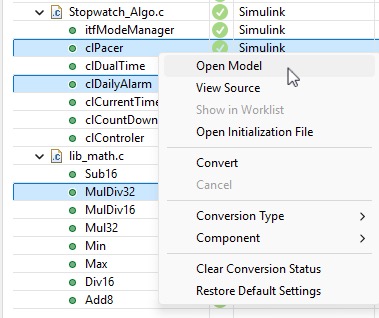
Context menu actions are explained below.
- Open Model: if the selected function was converted to a model, then it opens the Simulink model in MATLAB.
- View Source: it applies to .c files and functions and it jumps to the source in the eclipse text editor.
- Show in Worklist: it shows worklist items (e.g. conversion limitations or problems) for the selected function in the Modelify Worklist view. The menu option will be disabled if there are no worklist items associated with the selection.
- Open Initialization File: opens the initialization file. This file can either be an M script or a Data Dictionary file. See Data Storage section for details about this file. R2014b or higher is required to open a Data Dictionary file.
- Convert: it converts the selected elements.
- Cancel: it cancels conversions for selected elements.
- Conversion Type: allows changing the conversion type.
- Component: allows changing the type of component.
- Clear Conversion Status: clears the conversion status and sets the corresponding mapping status depending on whether the element is mapped or not.
- Restore Default Settings: restore conversion type and type of component to original settings proposed by Modelify.
General
The General tab provides several configuration options separated into sections. At the top-right corner, it provides two convenience buttons to import settings from a different project and to re-convert the last reviewed function after changing conversion settings.
MATLAB version
Here you can choose the MATLAB version you want Modelify to use when creating models.
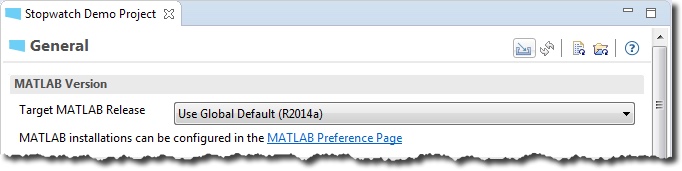
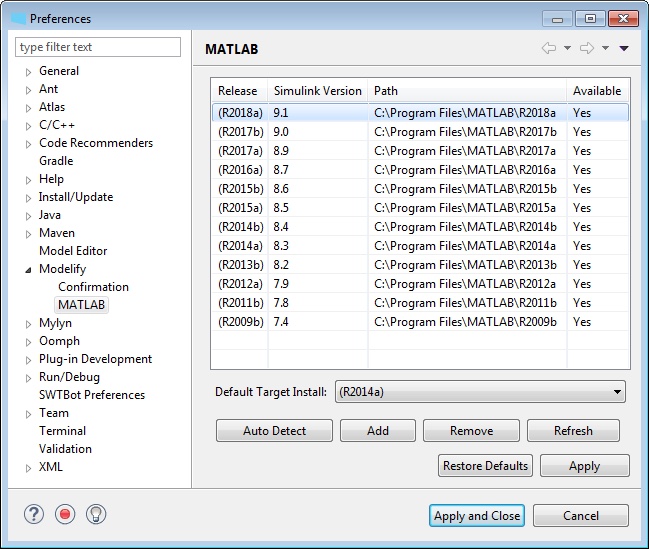
It also provides a link to access the MATLAB Preference Page where you can configure the MATLAB installations you have on your system and want Modelify to be aware of.
Model
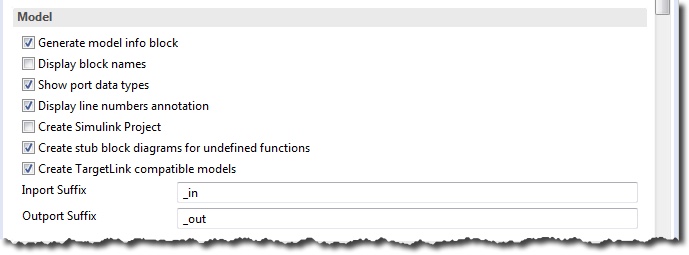
The Model section includes options related to the model creation and contents.
| Option | Description |
|---|---|
| Generate model info block | Enabling this option will add a Model Info Simulink block to every model created by Modelify. This Model Info block will give information about the Modelify version it was created with, when the model was created, and the original function that is was created for. |
| Display block names | This option controls whether or not the name of each Block is shown in the model. |
| Show port data types | When this option is enabled, generated Simulink models will display the data type next to each block port. |
| Display line numbers annotation | An annotation will be added to each block to show the line number in the source code for which it was created. |
| Create Simulink Project | A Simulink Project will be created to manage the models created for this C project. |
| Create stub block diagrams for undefined functions | Stub block diagrams will be generated for any functions that are declared but not defined. A stub block diagram contains the necessary blocks to represent the function interface. This allows model generation to continue without the need for a concrete function definition. Stub block diagrams can be saved as a model or as a library subsystem block depending on the Store stub block diagrams as a library block setting selected in the User Library section. |
| Create TargetLink compatible models | When this option is enabled, the generated model will only contain Simulink blocks that are supported by TargetLink. |
| Inport Suffix | Suffix to be used for Inport blocks corresponding to global variables. This suffix will only be added if name collision is detected, that is, if an Outport with the same name exists. |
| Outport Suffix | Suffix to be used for Outport blocks corresponding to global variables. This suffix will only be added if name collision is detected, that is, if an Inport with the same name exists. |
Model Storage

| Option | Description |
|---|---|
| Model Storage Directory | By default, generated models will be stored in a Modelify folder under the project location. However, you can set a different location by changing the value in the Model Storage Directory text box. |
| Storage Behavior | The storage behavior indicates how models will be stored. Flat means that all models will be stored in a single directory. Full Function Path means that a directory structure similar to that of the project will be created for each function. Directories will also be created for .c files. |
| Remove File Extension | This option applies only when the 'Full Function Path' storage behavior is chosen. If this option is enabled, the directory created for the source file will not contain the file extension in the name. |
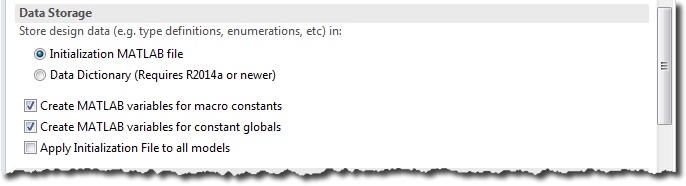
Data Storage
| Option | Description |
|---|---|
| Initialization File | Modelify stores design data in an initialization file. Design data includes Bus and Enumeration definitions, workspace variables for constants, and Simulink.Signal definitions. This data can either be stored in an initialization M-Script file which is included in 'PreLoadFcn' model callback, or a Data Dictionary file that is linked from the models. |
| Create MATLAB variables for macro constants | If enabled, Modelify will create MATLAB variables for object macros with the corresponding value and will store them in the initialization file. These variables will then be used in Constant Simulink blocks or in Stateflow Transitions. This setting simplifies calibration of control systems by putting constants at a single place. |
| Apply Initialization File to all models | Enabling this option will apply Initialization File to all models. If this option is disabled, the Initialization File will only be applied to models that use any design data specified in the file. |
User Library
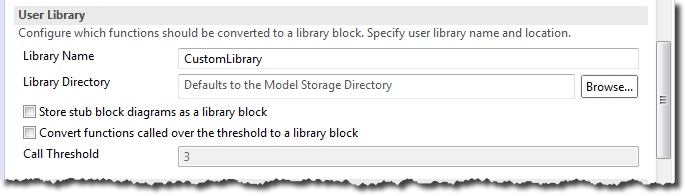
Modelify can be configured to convert functions that meet some criteria to a library block. Below explanation of checkbox options describe the criteria.
| Option | Description |
|---|---|
| Library Name | Specify the name for the Simulink user library. |
| Library Directory | Leave this value empty to store the library in the same directory where models are stored, or specify a different directory for the library. |
| Store stub block diagrams as a library block | This setting applies when the Create stub block diagrams for undefined functions setting in Model section is enabled. If enabled, stub block diagrams will be saved as a subsystem block in the user library. Otherwise, a standalone stub model will be created. |
| Convert functions called over the threshold to a library block | Enables the recommendation to convert frequently-called functions to a user library block. The Call Threshold is the minimum (inclusive) number of times that a function must be called to automatically be converted to a user library block. Functions that don't meet this threshold can still be manually configured to be converted to a user library block. |
Conversion Bundle
In order to convert your C code to Simulink models, you have to create a conversion bundle. The Conversion Bundle page allows you to create a bundle where you select which parts of a C project to convert to Simulink.
How much of the project can be converted depends on the user's license. If the user is evaluating Modelify with an evaluation license, the conversion bundle will be limited to a small amount of code. The number of lines you have available are shown at the bottom. The Refresh Available Budget button will update that value in case it's not shown.
The image below shows the Conversion Bundle page.
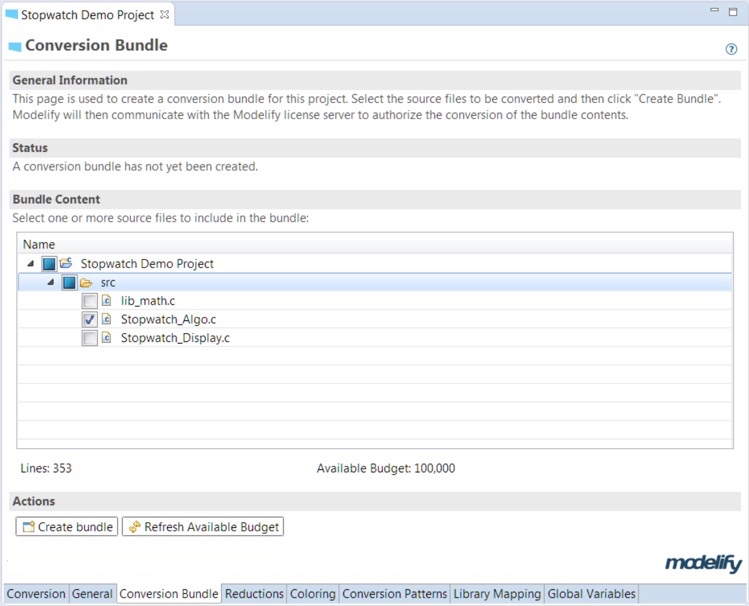
To create a conversion bundle:
- Select the source files that you want to include in the conversion bundle by clicking the checkboxes. As you select more files, the text field will show the number of lines that selected files contain (bundle size) at the bottom-left.
- Click the Create Bundle button.
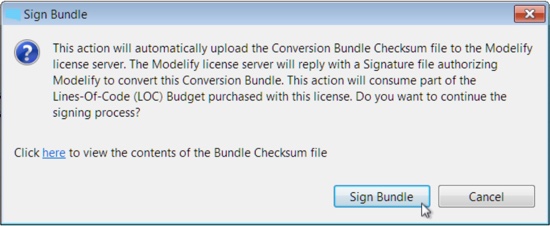
- Sign Bundle
- If your computer is connected to the Internet you can sign the bundle directly from Modelify. After creating the bundle, click the Sign Bundle button in the dialog that pops up.
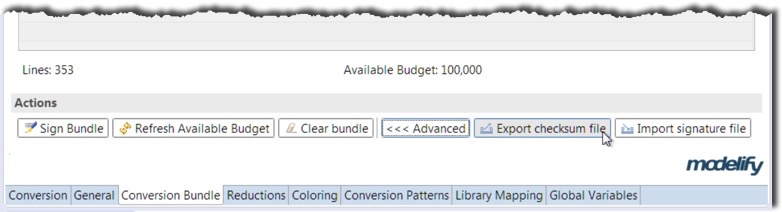
- If your computer is not connected to the Internet or the Modelify license server cannot be reached by some reason, then you can follow the steps below
- Click the Advanced >>> button.
- Click the Export checksum file button from the new set of buttons that are displayed to save it to disk.
- Email the saved conversion bundle checksum file to EnSoft at support@ensoftcorp.com
- When you get the approved conversion bundle signature file from EnSoft, click the Import signature file button.
- Remap your workspace and files included in the bundle can now be converted to Simulink.
The bundle checksum file that is sent to EnSoft does not contain any of the source code. It simply contains a hash of the source code so that Modelify can verify that the conversion bundle file matches the current project's code.
This does allow for some editing to the code so that the user can adjust the code if needed or observe how Modelify generates models for different source code. Modelify will allow for up to 1% of the code to be changed after the bundle is signed.
Rebasing a Conversion Bundle
If you need to make changes amounting to more than 1% to your code after the bundle is signed, then you will need to use Rebase.
For example, suppose you have a bundle with 10,000 lines and you have modified 150 lines (this is more than the allowed 1%). If your current line budget is at least 150 lines, then you can use it to rebase your bundle.
The bundle rebase operation requires signing the newly created bundle checksum file. The signing operation will only consume the number of lines that were changed. To rebase your existing bundle simply click the Rebase bundle button and then sign the new bundle. A dialog to sign the bundle will automatically pop up. Alternatively, you can send EnSoft the file to be signed (details about signing steps above).
The conversion bundle page includes information about the number of lines included in your bundle, the number of lines changed since the bundle was created and your available line budget.
Clearing a Conversion Bundle
If you exported the conversion bundle checksum file and then decided to include more files in it, click the Clear bundle button to start a new bundle. This should generally only be done before the bundle has been signed. See the "WARNING" section below.
WARNING
The loss of important Conversion Bundle files will create licensing problems and may require the purchase of a new license. EnSoft support does not have a copy of the master archive file because it includes user source code.
When a Conversion Bundle is created, Modelify creates a master archive file of the source code stored within the project (.modelify/bundle-master-file.zip). The checksum file that is sent to EnSoft will contain only a checksum calculated from the master archive file. After the Conversion Bundle has been signed, Modelify will compare the current source code to the code stored in the archive file. This is how Modelify determines how much the source code has been changed. If this file is missing, Modelify will not be able to validate the Conversion Bundle and will not allow the user to convert the code to Simulink models.
It is not possible to reconstruct a Conversion Bundle after clearing or deleting it. This means that if the master archive file is lost, then the lines-of-code budget used to create this Conversion Bundle will also be lost.
Due to the fact that the source code and master archive files are never sent to EnSoft, EnSoft does not have a backup of the bundle files and so we recommend that Modelify users either backup the master file or are careful never to delete it.
Coloring
Modelify supports automatic coloring of blocks to support modeling guidelines. Rules can be set for each block type or block library, and can specify both the Background and Foreground color.
To set the color rules:
- Select the Coloring tab, and click on the Add button.
- Click the cell under the Block Type/Library column, and click on the Edit button
- On the dialog that opens, select the Block Type or Library and click OK.
- Click on Background or Foreground color, then the ... button.
- Select a color, then close the dialog.
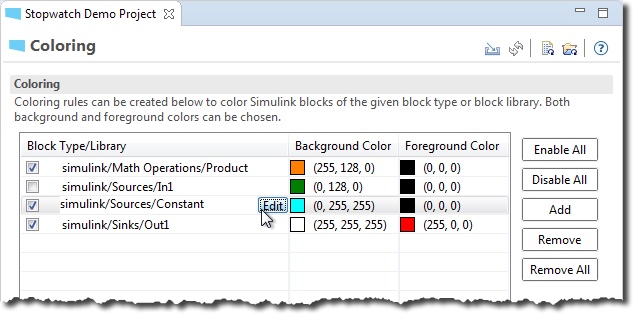
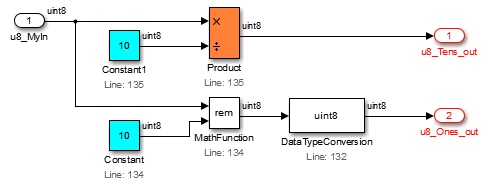
The image below shows a generated sample model corresponding to the color settings shown in the above figure. Note that coloring for inports is specified but disabled and thus it's not applied.
Conversion Patterns
By default, Modelify makes a recommendation on how each function will be converted. For example, functions that are only called once and from a single function are converted to a subsystem; functions called many times from other functions are converted to a user library block.
You can override the default recommendation by setting specific conversion options for a given set of functions.
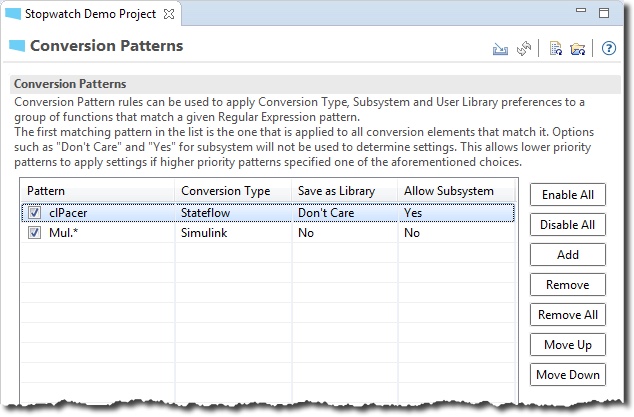
To set conversion settings:
- Click the Add button.
- Click the cell in Pattern column to specify function name. You can specify a regular expression to match multiple functions
- Then click cells in remaining columns to set
- Conversion Type: one of the conversions types as explained in Conversion section.
- Save as Library: select whether the matching functions should be converted to a library block. Choose Don't Care to keep Modelify's recommendation.
- Allow Subsystem: indicate whether the function can be converted to a subsystem in the case that is called only once or whether it should be converted to a model.
Library Mapping
Modelify allows specifying function-to-block mappings for functions in the codebase. This allows the conversion to leverage existing Simulink blocks or company-specific block libraries.
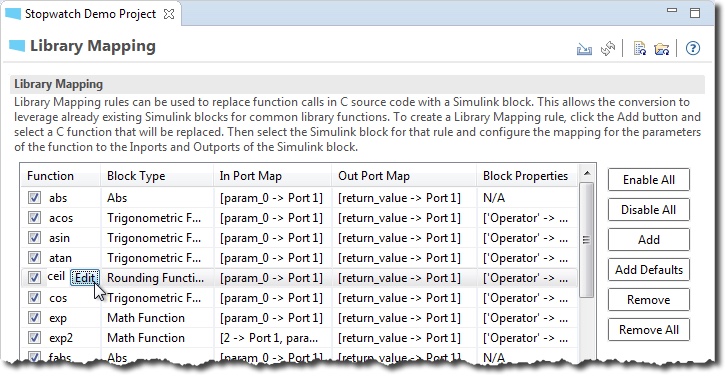
Modelify provides a default list of mappings for several mathematical operations. Click the Add Defaults button to add the default mappings.
You can enable or disable mapping rules individually by clicking the checkbox in the Function column.
To create a new custom mapping rule:
- Click the Add button.
- Select the function from the list of functions and click OK. You can start typing the function name to filter the functions list.
- Click the cell under Block Type column, then click the Edit button to select the block type that will replace the function in Block Types dialog.
- If needed, edit the corresponding In Port Map and Out Port Map cells to set mapping of function input arguments to block inports, and function output to block outports.
- You might optionally need to set the parameters for the selected block type. Click Edit button in Block Properties column.
Block Types Dialog
The Block Types dialog is used to select the block type for the library mapping. The Block Type can be selected from either the built-in Simulink block types or from a custom library.
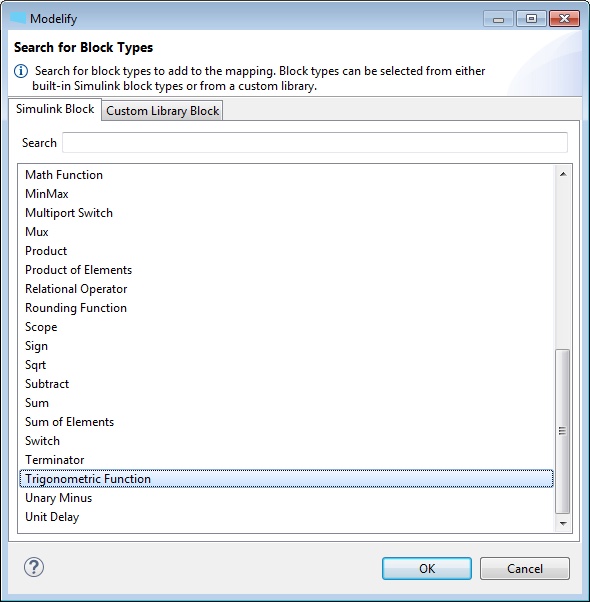
If you would like to select a built-in Simulink block type, select the Simulink Block tab in the dialog. The Search box can be used to find a block type and then select it in the list.
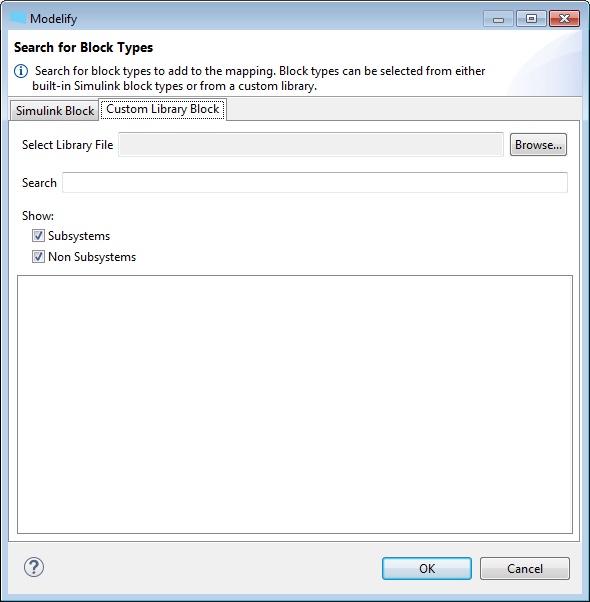
To select a block type from a custom library, select the Custom Library Block tab in the dialog. Then choose the custom library file using the Browse... button. Modelify will then load the list of block types in the selected file and fill the list.
Using the toggle buttons under Show, you can choose whether Subsystems and Non Subsystems should be shown in the list.
In Port Map Dialog
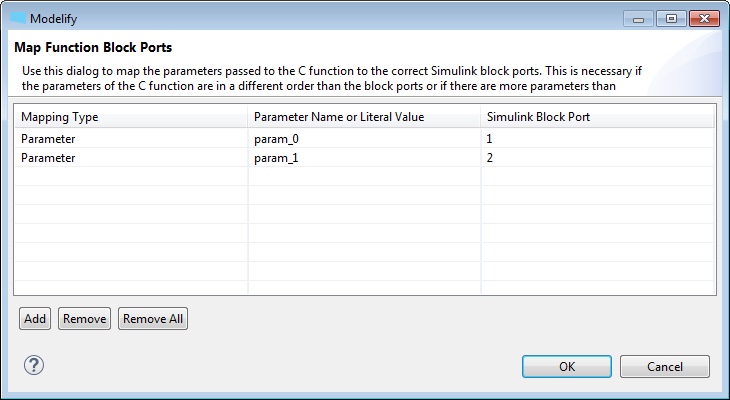
The In Port Map Dialog is used to map the parameters of the C function to the correct Simulink block ports. This is necessary if the parameters of the C function are in a different order than the block ports or if there are more parameters than ports or vice-versa.
To map function block inports:
- Click the Mapping Type column to select the type from either Parameter or Literal.
- In the second column, select the parameter name or type the literal value.
- In Simulink Block Port column, set the Simulink port number
The Add and Remove buttons are used to add and remove parameters.
Out Port Map Dialog
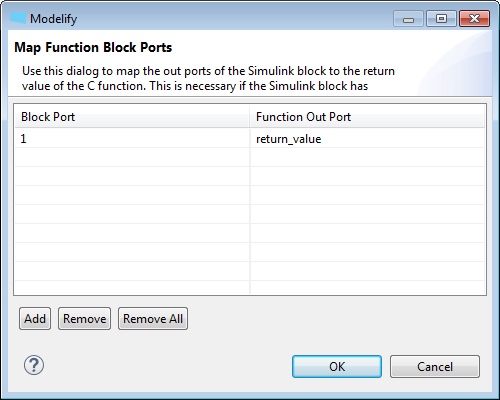
The Out Port Map Dialog is used to map the out ports of the Simulink block to the return value of the C function. This is necessary if the Simulink block has multiple out ports.
To map function block outports:
- Type the port number in Block Port column.
- In Function Out Port column, select the Out Port for the port number from the dropdown menu.
The Add and Remove buttons are used to add and remove block ports.
Block Properties Dialog
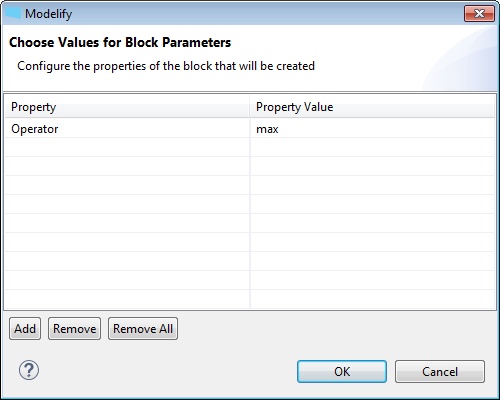
The Block Properties Dialog is used to configure the properties of the block that will be created. You can set the value for selected block's parameters.
To set the value for block parameters:
- In Property Value column, choose the value from dropdown menu.
The Add and Remove buttons are used to add and remove properties.
Global Variables
This page allows you to give Modelify more information about how a global variable should be converted. Global variables that are constant can be configured to be converted as a Constant Block or as Inports and Outports. If a global variable is a pointer, Modelify may not be able to determine the size of the pointer and this page can be used to configure the dimension of the global variable.
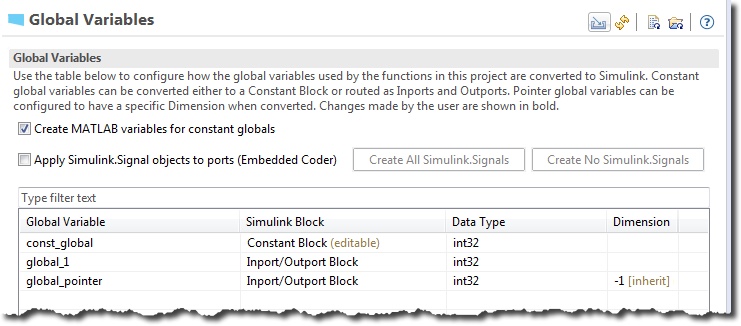
The table in this page will automatically be populated with the global variables that are used in the project.
To change how a constant global variable is converted, click in the cell in the Simulink Block column and a drop down box will appear with the options Constant Block and Inport/Outport Block. This is only enabled for constant global variables.
To change the dimension of a pointer global variables, click in the cell in the Dimension column. The cell will become editable and you can enter a dimension for the global variable. The value -1 can be used if the global variable should inherit its dimension from an input.
For global variables that are not constant and are not a pointer, no configuration is necessary.
The page also contains the following:
- A Create MATLAB variables for constant globals checkbox: if enabled, Modelify will create MATLAB variables for global variables marked as 'const' or that are never written.
- An Apply Simulink.Signal objects to ports (Embedded Coder) checkbox: this option allows configuring code generation options for ports corresponding to global variables. See details in the section below.
- Search box: the search box at the top of the table allows locating global variable elements under the Global Variable column.
Configure Simulink.Signal creation to support Embedded Coder
Steps below show how to configure Simulink.Signal objects for ports to specify code generation options.
- Check the Apply Simulink.Signal object to ports(Embedded Coder) checkbox. This enables the below three columns in the table to configure the creation of Simulink.Signal objects. Note that Modelify will automatically fill out Header File and/or Definition File columns using the information of the place where the global variable is declared/defined.
These values can be changed as desired.
- Create Simulink.Signal: indicates if a Simulink.Signal has to be created for a global variable. Convenience Create All Simulink.Signals and Create No Simulink.Signals buttons are included at the top of the table to create Simulink.Signals for all or no variables, respectively.
- Header File: specifies header file of global variable. It should include the file extension (.h)
- Definition File: specifies definition file of global variable. It should include the file extension (.c)
- Convert functions that use configured global variables.
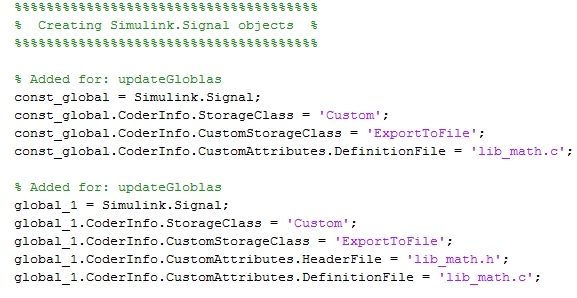
- Simulink.Signal objects are created in the initialization file. It is also possible to perform manual changes in the initialization file; however note that a future conversion could override those manual edits.
The image below shows an example of an M-Script initialization file with Simulink.Signal objects.
Have a question or want us to fix something?
Thank you.
We have your note about this page.