
Integrating SimDiff in GitLab workflows
A GitLab pipeline on a Windows runner runs SimDiff Automation and publishes a peer review file.
Introduction
These steps put SimDiff Automation in a GitLab workflow with Simulink model files and Git.
When a change to a Simulink file is pushed, a pipeline uses SimDiff to create a peer review file of the changes and uploads it to GitLab as an artifact. This example uses a GitLab Runner on a local Windows PC.
Getting started with a simple example
Prerequisites
- A GitLab.com account
- A repo in GitLab with your Simulink files
- A Windows PC with Simulink, Git, and SimDiff Automation installed
Access a GitLab repo
You need a GitLab account and a repo that contains Simulink files. Import the sample repository into your GitLab project:
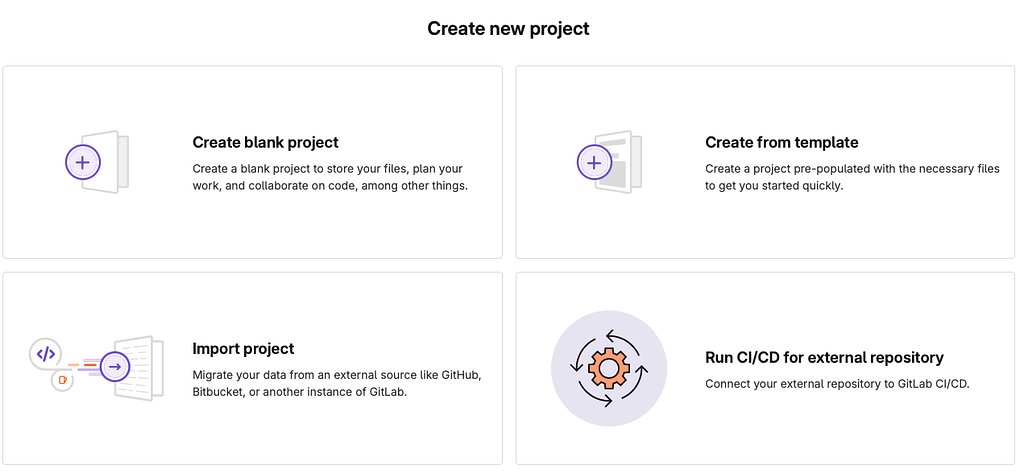
- Create a project by clicking Create project in GitLab.

- Click Import project.
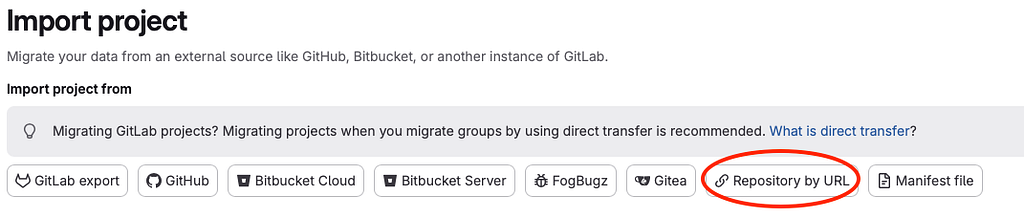
- Click Repository by URL.
- In the Git repository URL field, type
https://github.com/EnSoftCorp/gitlab-integration.git.
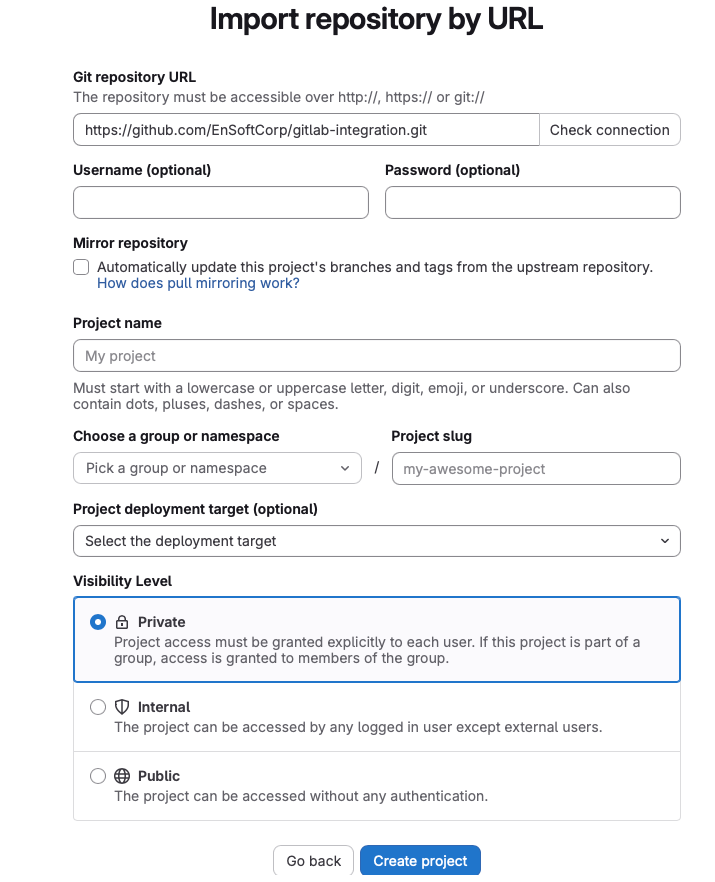
- Give the project a name and click Create project. The repository is imported.
The repository has two branches, main and dev. The main branch has aero_radmod.slx and a YAML file that tells the pipeline what to run. That YAML file is already set up to use SimDiff to report changes between file versions.
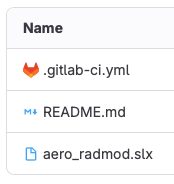
Those are the main branch contents.
Clone the repo on your computer
Clone the same Git repository on a local Windows PC. The clone URL is under the Code button, usually at the top right of the repository page in GitLab.
git clone git@GitLab.com:##YourRepoURLinGitSet up Git credentials for GitLab. Clone your GitLab repo, not the GitHub repo that was imported into GitLab.
Install GitLab runners
GitLab Runner works with GitLab CI/CD to run jobs in a pipeline. When developers push code, they can define tasks in a .gitlab-ci.yml file. Those tasks can run tests, build an application, deploy code, or run SimDiff. GitLab Runner is the application that executes the tasks.
Install Runner on Windows. GitLab documents the install at Install GitLab Runner on Windows. The short steps are:
- Download the 64-bit binary and move it to a directory you choose.
- Rename the binary to
GitLab-runner.exe. - Open Windows PowerShell with administrator privileges.
- Change to the install directory and install the runner with
.\GitLab-runner install. - Start the runner with
.\GitLab-runner start.
Create a runner in GitLab. Follow Create and register a project runner. In short:
- Click Create project runner in Settings, then CI/CD, then Runners.
- Click Run untagged jobs, enter an optional description, and click Create runner.
- Select Windows as the platform.
- GitLab shows a command to register the runner, with the URL and token. Copy that command.
.\gitlab-runner.exe register --url https://gitlab.com --token glrt-sample-token-stringRegister the runner. In the Windows PowerShell window, type the command GitLab showed.
- Type the register command above.
- When prompted for an executor, type
Shell.
Edit config.toml. A config.toml file is created in the same directory as the runner executable.
- Edit the line that starts with
shell=so that it says'shell = "powershell"'.
Run the runner. Open a Windows command prompt or PowerShell without administrator privileges.
Type .\GitLab-runner.exe run.
Push a change in Git
With the runner configured, check the items below, then push a change to trigger the pipeline.
Verify the SimDiff Automation installation. The YAML file assumes SimDiff Automation is installed at C:\Program Files\EnSoft\SimDiff Automation. Change that location in the YAML file if it is not.
Configure SimDiff Automation. Configure the license and MATLAB installations by running sd4.exe with the -license and -matlabSetup command-line options. Then check that a report can be generated from the command line.
Review the YAML file. This sample .gitlab-ci.yml triggers SimDiff to generate a report. When a change to aero_radmod.slx is pushed, the pipeline generates the report and uploads it. A later section extends this so every changed model file gets a report.
stages:
- peer_review_file_generation

SimDiff_Peer_Review_File:
stage: peer_review_file_generation
before_script:
  - $command = '\"C:/Program Files/EnSoft/SimDiff Automation/sd4.exe\" -l \"$LOCAL\" -r \"$REMOTE\" -export aero_radmod_peerreview.html'
  - git config --local difftool.sd4.cmd $command
script:
  - echo "Comparing with SimDiff"
  - git difftool -y -t sd4 HEAD~1 HEAD .\aero_radmod.slx
artifacts:
  paths:
    - aero_radmod_peerreview.html
Change the model file and push. Change aero_radmod.slx, commit it, and push.
That starts a pipeline on GitLab. The runner on the local PC generates a SimDiff peer review file and uploads it as an artifact.
Observe the report artifact on GitLab.com
- Open Build, then Jobs. You should see a pipeline with the current job. When the job is fine, the pipeline is Passed.

- Click the job to see the details.
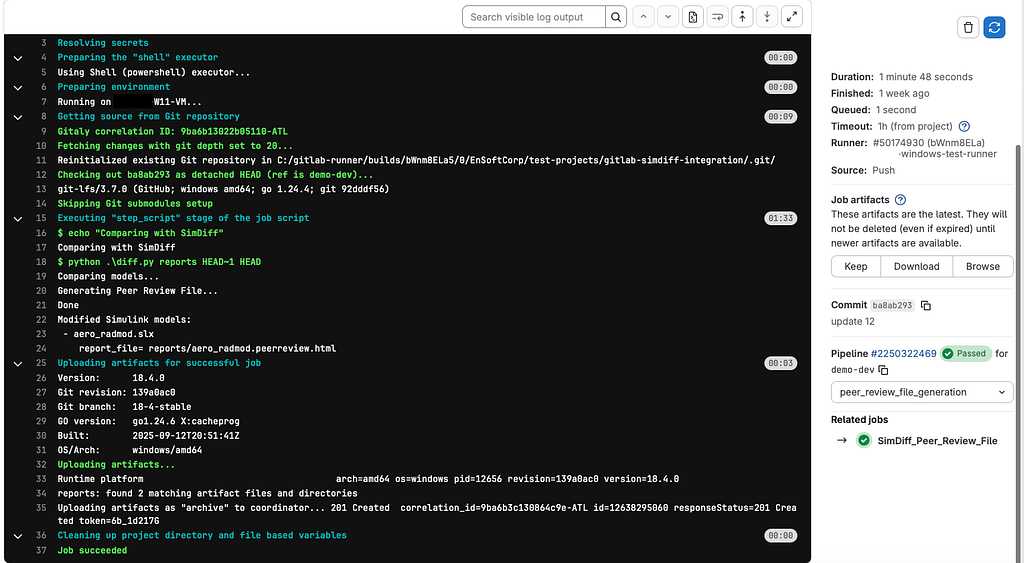
- Click Download to download the peer review file, or Browse to view it.
Comparing all changed model files in a commit
The earlier example assumed that a file named aero_radmod.slx was changed. To report every model file that changed in a commit, change the YAML file so it calls a Python script. A push that changes model files then creates a report for each changed file and uploads the reports as an artifact to GitLab. The sample script compares the current version of the file (HEAD) with the version in the previous commit.
Prerequisites
Install Python on the local machine, in addition to the prerequisites above. Install Python for all users so the GitLab Runner can run it.
Switch to the dev branch of the sample repository to see the updated files.
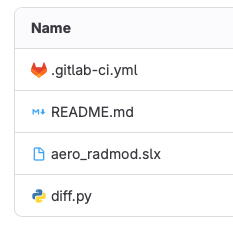
Those are the dev branch contents.
Repository changes
The dev branch has a modified YAML file that calls a new Python script.
Updated YAML:
stages:
- peer_review_file_generation

SimDiff_Peer_Review_File:
stage: peer_review_file_generation
script:
  - echo "Comparing with SimDiff"
  - python .\diff.py reports HEAD~1 HEAD
artifacts:
  paths:
    - reports
Python script. The listing for diff.py is below.
import subprocess
import os
import sys

# Function to get the list of modified files in the commit
def get_modified_files():
 try:
     # Get the list of modified files (slx files) in the current commit
     result = subprocess.run(['git', 'diff', commit1, commit2, '--name-only', '--diff-filter=M'], stdout=subprocess.PIPE,
                             text=True,      # Ensure output is in string format
                             check=True)     # Raise an error if the command fails
     # Filter to include only Simulink model files (.slx or .mdl)
     modified_files = [line for line in result.stdout.splitlines() if (line.endswith('.slx') or line.endswith('.mdl'))]
     return modified_files
 except subprocess.CalledProcessError as e:
     print(f"Error getting modified files: {e}")
     return []

# Function to call SimDiff for each file
def run_simdiff_for_files(file):
     try:
         # Call the difftool (replace 'simdiff' with the actual command if different)
         report_file = f"{reportsDir}/" + file.removesuffix(".slx") + ".peerreview.html"
         print(f"    report_file= {report_file}")

         # Ensure report directory is created if it doesn't exist
         report_path = os.path.dirname(report_file)
         os.makedirs(report_path, exist_ok=True)

         path_to_diff_tool = f'"\'C:/Program Files/EnSoft/SimDiff Automation/sd4.exe\' -l $LOCAL -r $REMOTE -export {report_file}"'
         config_cmd = f'git config --local difftool.sd4.cmd {path_to_diff_tool}'
         #print(f"    config_cmd= {config_cmd}")
         subprocess.run(config_cmd, text=True, check=True, shell=True)
         diff_cmd = f'git difftool -y -t sd4 {commit1} {commit2} {file}'
         #print(f"    diff_cmd= {diff_cmd}")
         subprocess.run(diff_cmd, text=True, shell=True)

         #print(f"    SimDiff ran successfully for {file}\n")
     except subprocess.CalledProcessError as e:
         print(f"Error running SimDiff on {file}: {e}")

def main():
 modified_files = get_modified_files()
 if modified_files:
     print("Modified Simulink models:")
     for file in modified_files:
         print(f" - {file}")
         run_simdiff_for_files(file)
 else:
     print("No modified Simulink models found.")

if __name__ == '__main__':
 reportsDir = sys.argv[1]
 commit1 = sys.argv[2]
 commit2 = sys.argv[3]
 main()
Make changes to model files and push
When you push changes, a report is created for each changed model file and uploaded as an artifact to GitLab.
Contact
Questions about these steps: support@ensoftcorp.com.
Have a question or want us to fix something?
Thank you.
We have your note about this page.