

SimDiff Automation integrates Simulink into modern DevOps. This demo gives an overview of some of its features. Request a free trial and try it on your models!
SimDiff Automation provides seamless automated comparison and reporting within your pipeline. For a full-featured experience on your local workstation, see SimDiff Workstation. For an interactive visual review of changes in Simulink models, see SimDiff Review.
Integrating SimDiff Automation with GitLab
SimDiff Automation integrates with GitLab to allow merge request reviewers to see Simulink model changes visually.
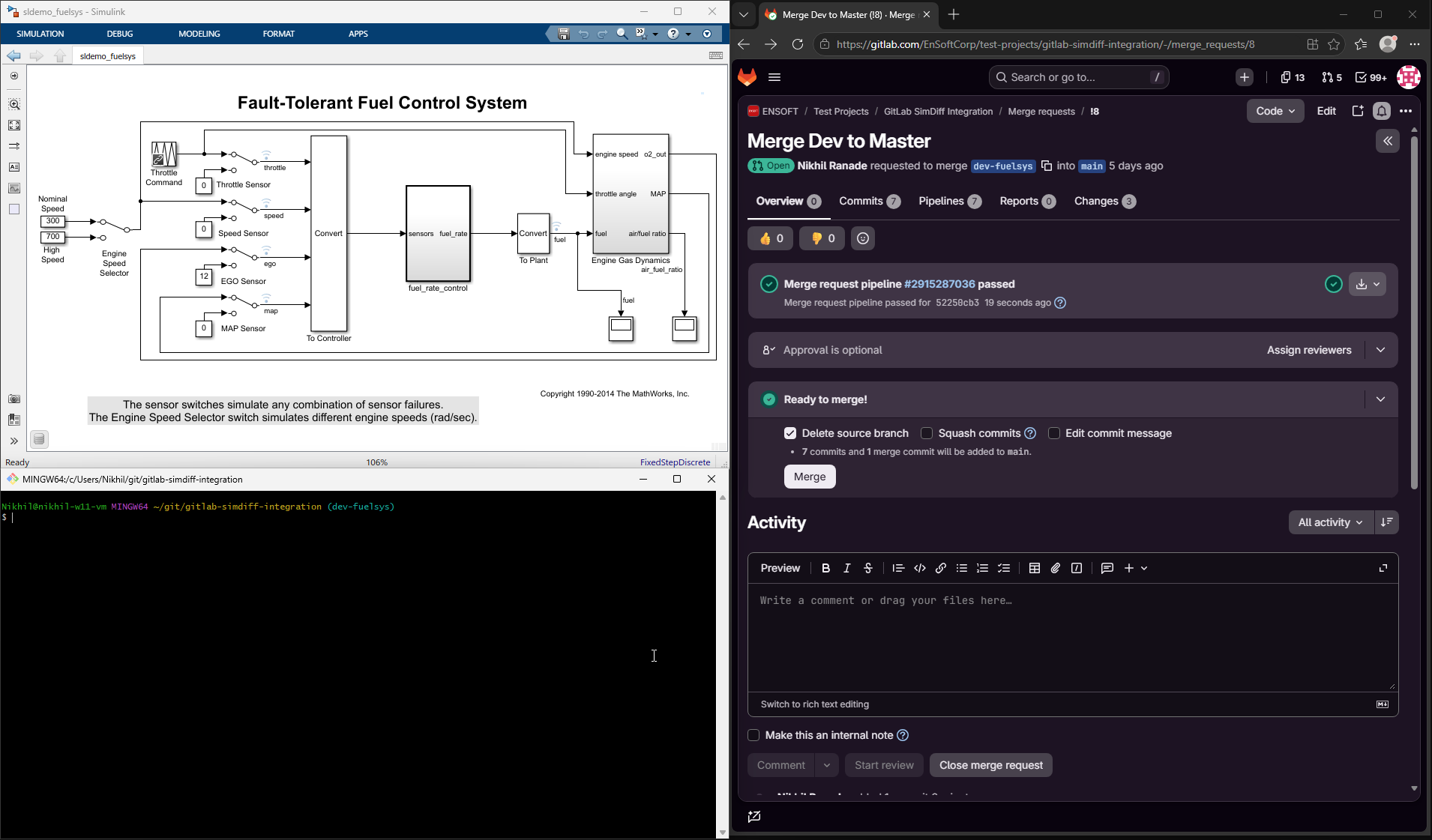
In GitLab a pipeline is a series of automated steps that run in the background in response to repository events. When a change to the model is pushed, GitLab sees the new commit and kicks off SimDiff Automation in a pipeline to compare the new version of the model with the previous one. A Peer Review File is generated and attached to the merge request.
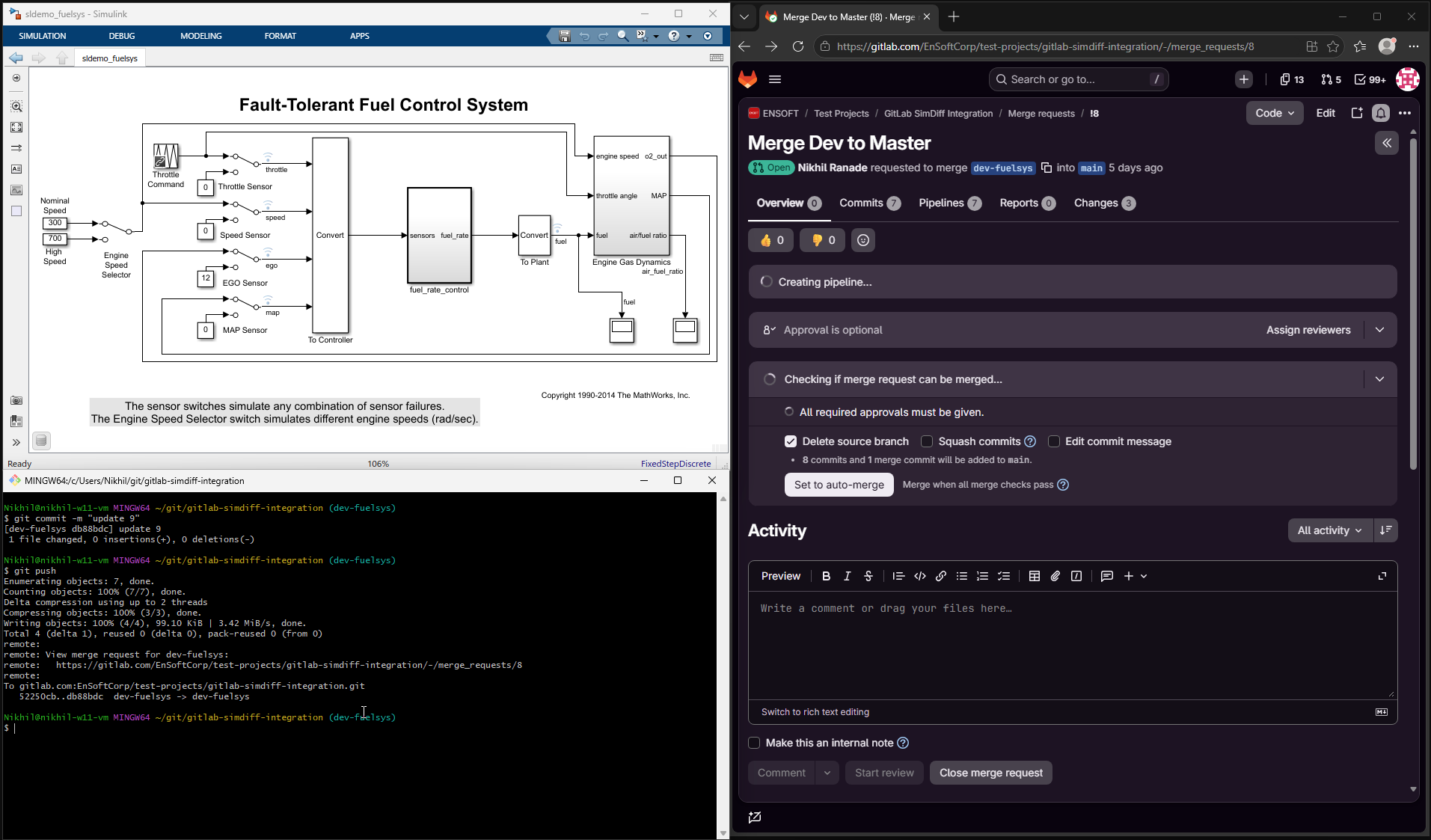
A simple YAML file triggers the pipeline. It uses the git difftool command to run SimDiff Automation on the two versions of the model, then uploads the Peer Review File to the merge request as an artifact. Our Support page has articles that explain how to configure these files for GitLab, GitHub, and Azure DevOps.
Once the pipeline passes, the Peer Review File can be downloaded from the merge request.
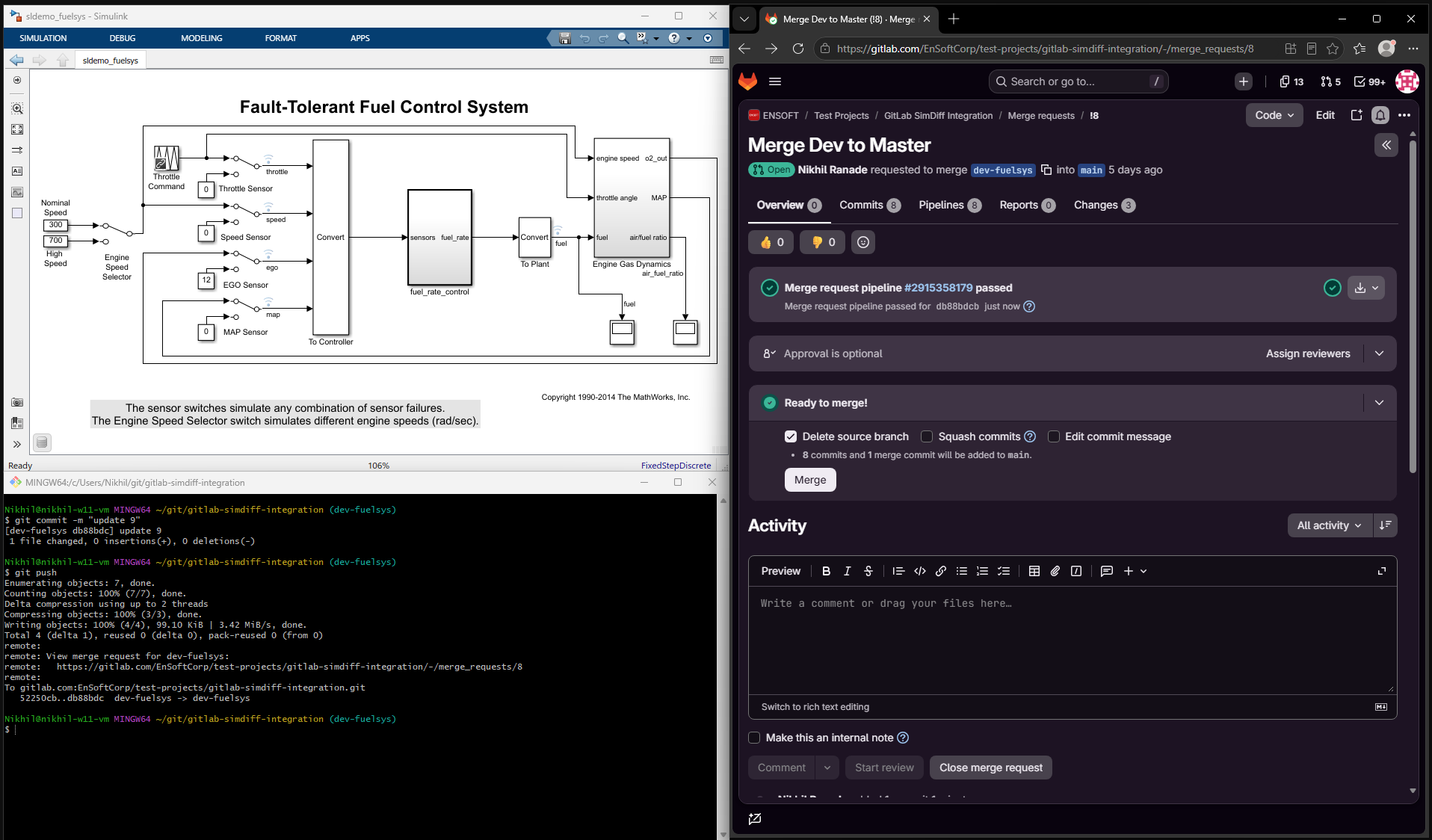
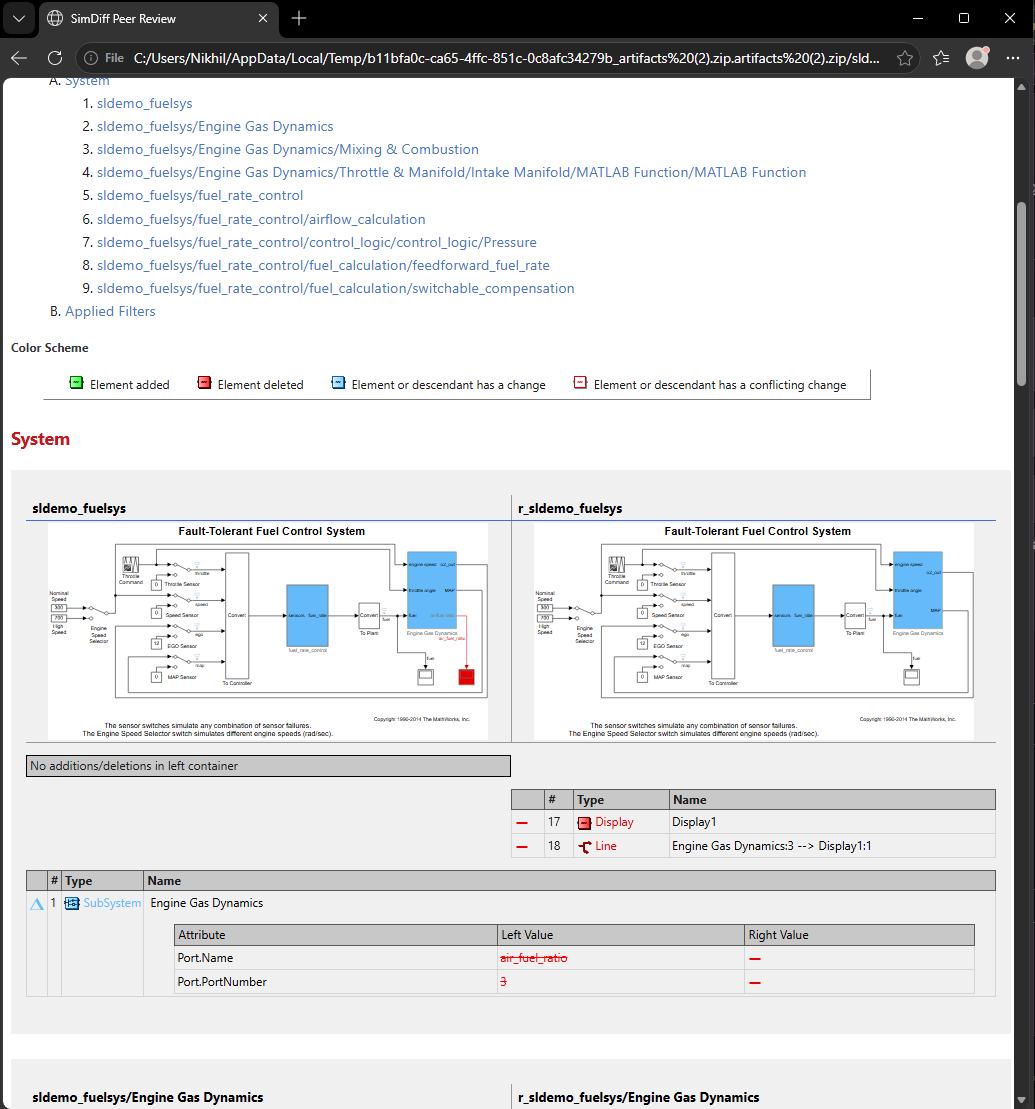
The SimDiff Peer Review File shows all the changes done to the model. It identifies the models compared along with commit IDs, and its comparison metrics help assess the impact of the commit.
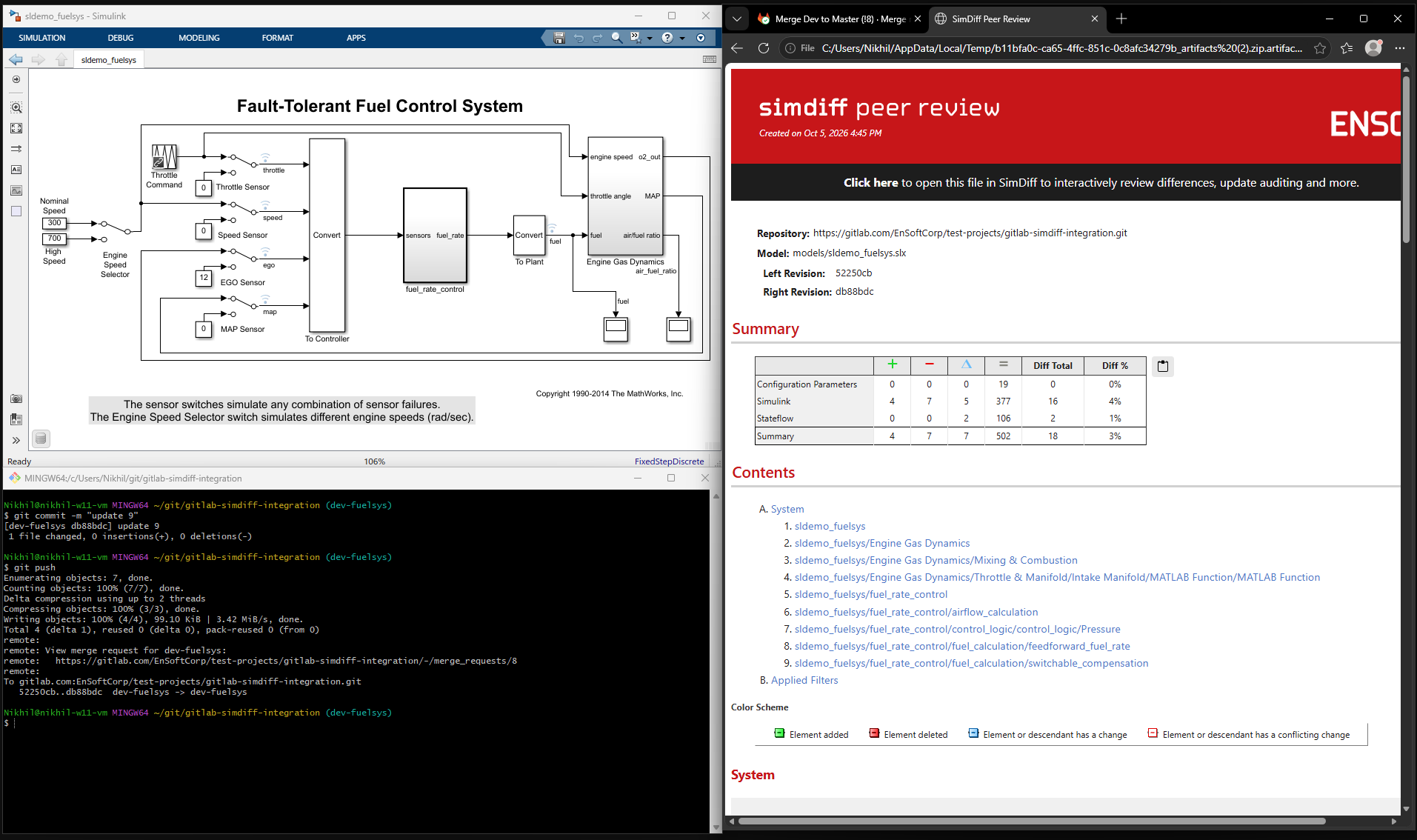
It includes screenshots of the models and the list of differences. Changes are color-highlighted in the screenshots, and the tables underneath list the deleted elements and the changed attribute values.
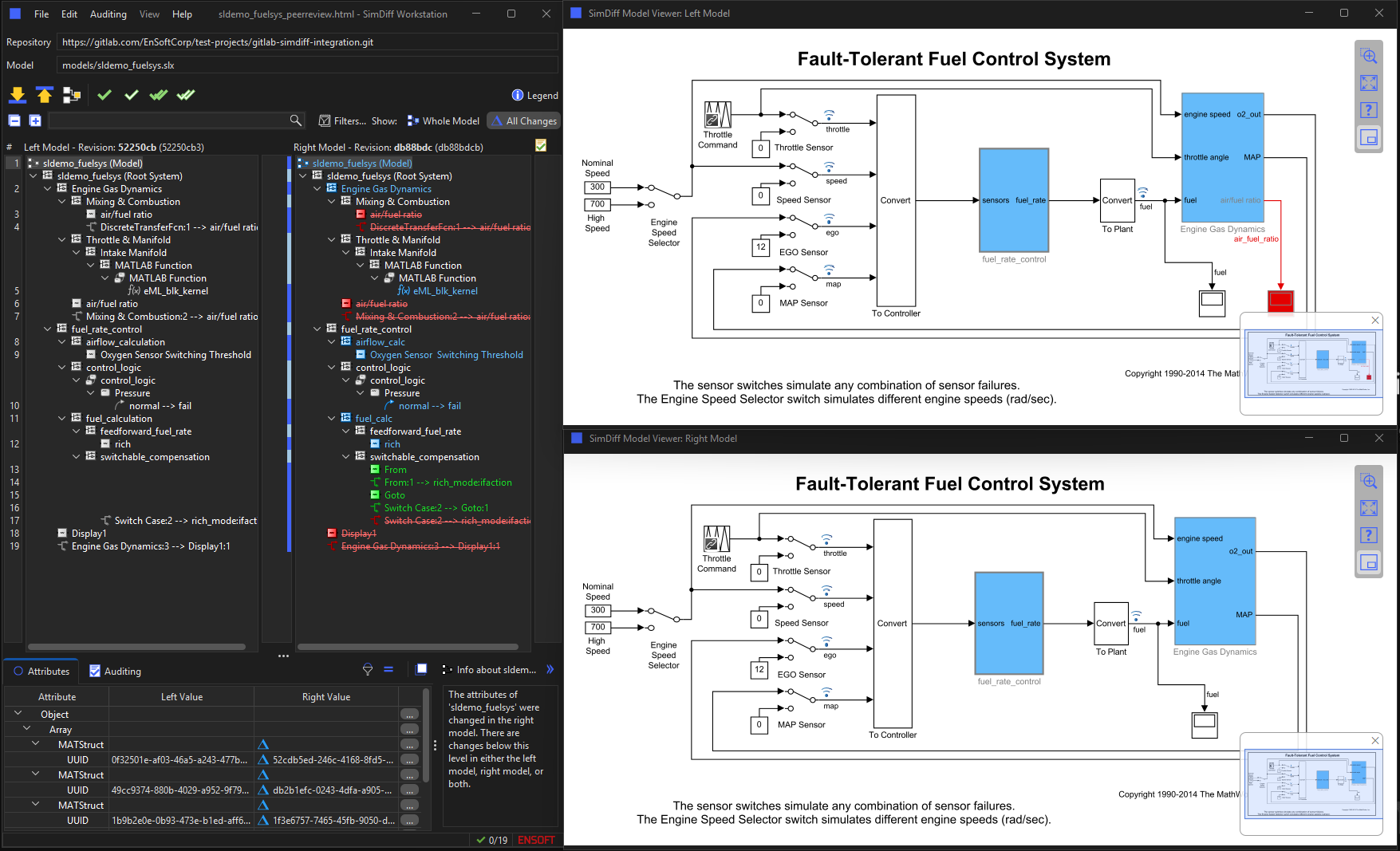
It’s much better to see this information inside SimDiff, so the Peer Review File has a link that opens it in SimDiff. There, two trees represent the model hierarchies. Double-click a model element to see it in SimDiff’s Model Viewer. Neither Simulink nor MATLAB is required to view the model.
This was just a quick overview of SimDiff Automation. Please contact us to learn more!
Request SimDiff Automation Trial
Thank you!
Your SimDiff Automation trial request has been submitted. We will be in touch within 1-2 business days.
Download SimDiff Automation
SimDiff Automation can be downloaded from the links below.
You will need a license key in order to use and run SimDiff Automation. If you don’t have a key already, please request a free trial license of SimDiff Automation , or if purchasing a license, please see our licensing and pricing page .
System Requirements for SimDiff Automation
SimDiff Automation can run on Windows, Linux, or within a Docker image.
SimDiff Automation does not require MATLAB/Simulink to run or to compute model file differences. However, it is needed to include model screenshots in reports.
If you have any questions about compatibility with your particular configuration, please contact us.