
‹ Unlocking the Power of Atlas
Unlocking the Power of Atlas (2): Interactive Software Analysis with Smart Views
Smart Views give a visual way to explore control flow, data flow, and call chains in an indexed codebase.
In the previous article, we started our journey into Atlas and learned how to import and index a codebase in Atlas. Let’s now start exploring features of Atlas, starting with Smart Views. Whether you’re diving into control flow, analyzing data dependencies, or investigating call hierarchies, Smart Views offer an intuitive, visual approach to navigating complex software systems.
What Are Smart Views?
Smart Views are interactive tools within Atlas that combine visual and code-based exploration. These views allow developers to:
- Interact directly with code segments and their visual representations.
- Run analyzers and observe results visually in real time.
- Perform interactive analyses, such as clicking on code elements to explore related flows and relationships.
They’re perfect for analyzing:
- Control Flow: Understand how execution flows within functions.
- Data Flow: Explore how data moves through the system.
- Call Chains: Investigate which functions call and are called by others.
- Type Hierarchies and More: Dive into various program semantics.
And if the default views aren’t enough? You can create your own customized Smart Views running analyses tailored for your specific applications.
How to Use Smart Views
Getting started with Smart Views is straightforward:
Open Smart View Window:
- Hover over the top bar and select “Open Smart View” from the Atlas menu.
- A new Atlas Smart View window will open within Eclipse, typically docked at the bottom. You can drag and reposition it as needed.
Let’s illustrate use of smart views with the example of Control Flow.
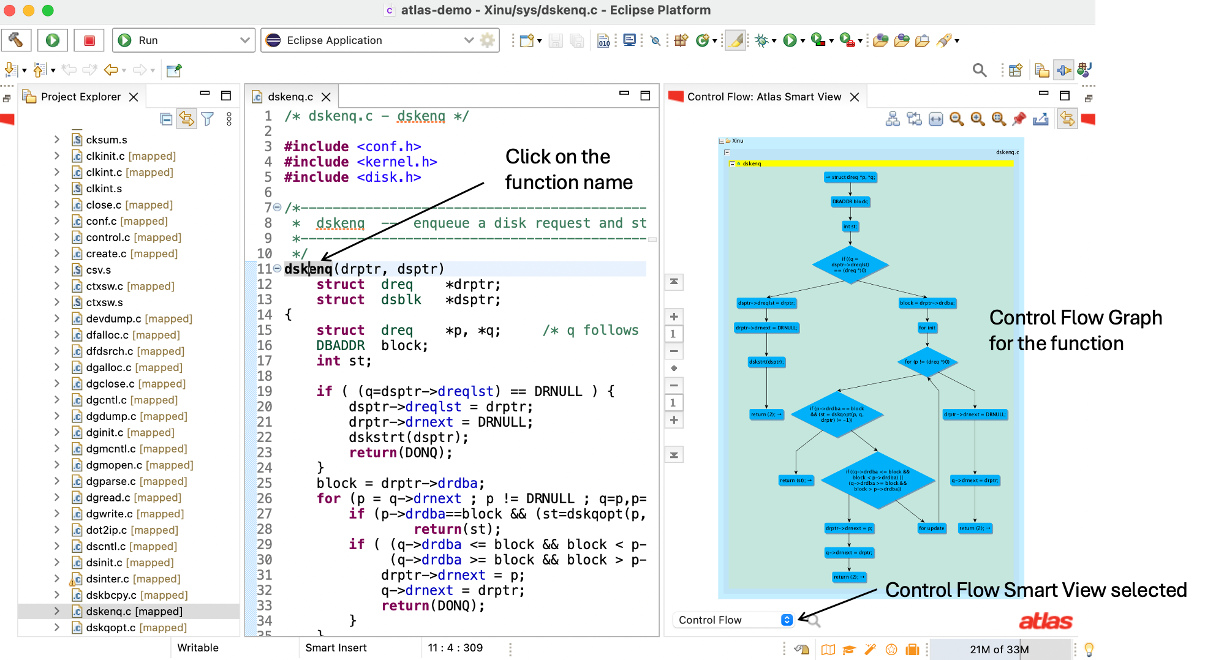
Example usage of a Smart View
- In the Smart View window, select the Control Flow Smart View to visualize the control flow graph (CFG) of the selected function.
- Click the function name to display the CFG for the selected function.
Pipeline Your Views:
You can chain multiple Smart Views to deepen your analysis. For instance:
- Use the Call Smart View to visualize calling relationships.
- Pin the call graph and select individual nodes to generate the CFG for specific functions.
- Seamlessly switch between views to build a complete picture.
Pipelining Smart Views: A Closer Look
The true power of Smart Views lies in their ability to work together. Here’s an example of pipelining with diagrams to visualize the process:
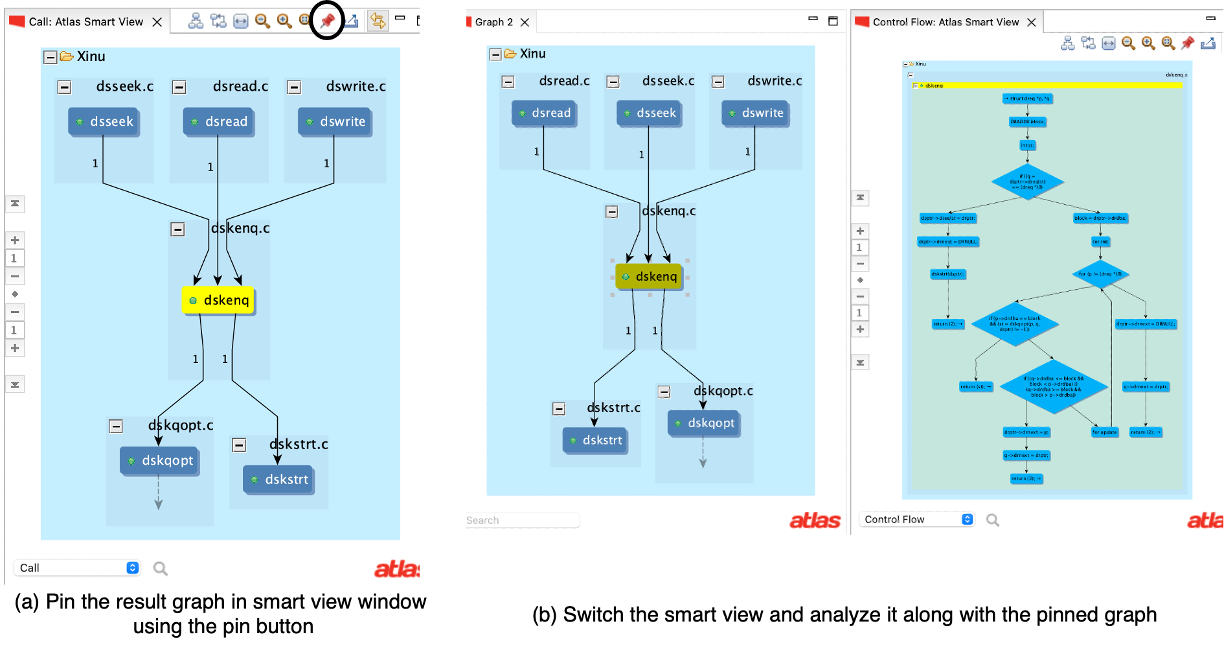
Pipelining Smart Views
Call Smart View: Start by selecting the Call Smart View to analyze how a function interacts with others.
Pin the Call Graph: Once the call graph is generated, pin the result to retain it while switching to another view.
Control Flow Smart View: Select a node from the pinned call graph (e.g., dswrite) to generate the CFG for that specific function.
Repeat for Other Functions: Similarly, explore other functions, like dskqopt and dskenq, by clicking on their respective nodes in the pinned view.
Each step builds on the previous one, offering a layered and interactive approach to software analysis.
Why Smart Views Matter
Smart Views empower developers to analyze large and complex codebases interactively. Key benefits include:
- Efficiency: Quickly pinpoint relationships and dependencies without manually sifting through code.
- Clarity: Visual representations simplify understanding of intricate software behaviors.
Flexibility: Tailor views to meet the specific needs of your project, from general debugging to specialized cybersecurity tasks.
Atlas Smart Views revolutionize software analysis, making it more interactive, visual, and efficient. Whether you’re debugging, optimizing, or ensuring security, these tools streamline your workflow and deepen your understanding of code.
Ready to take your analysis to the next level? Open a Smart View and see what you can discover!
Have a question or want us to fix something?
Thank you.
We have your note about this page.