
Integrating Simulink and Stateflow with git + SourceTree using SimDiff
SourceTree opens SimDiff through ToolSelector when you run External Diff or launch the external merge tool.
Git is a distributed version control system. The primary interface is the command line. SourceTree is a graphical client on top of that command line. These steps configure SimDiff for SourceTree.
This client uses ToolSelector. ToolSelector is an ENSOFT utility that picks a configured tool from the input arguments, for example the file type. The ToolSelector User Guide.pdf is in the ToolSelector directory. By default that directory is C:\Program Files\EnSoft\SimDiff\utils\toolselector. If you use a SimDiff version older than 2020a.2, the directory is C:\Program Files\EnSoft\SimDiff\utils\toolselector-20120215-1803.
Configuration
- Download
sourcetree-simdiff.zip. - Copy the extracted files to your ToolSelector directory (by default,
C:\Program Files\EnSoft\SimDiff\utils\toolselector). - Configure SourceTree’s external diff and merge tools:
- Open SourceTree.
- Click Tools, then Options.
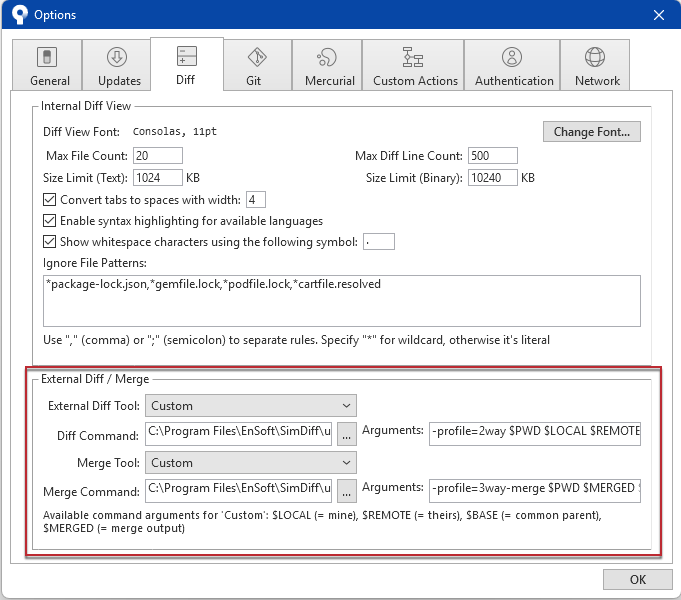
- Enter the following in the External Diff / Merge section under the Diff tab, as in the picture below.
External Diff Tool: Custom
- Diff Command:
C:\Program Files\EnSoft\SimDiff\utils\toolselector\toolselector.exe - Arguments:
-profile=2way $PWD $LOCAL $REMOTE
Merge Tool: Custom
- Diff Command:
C:\Program Files\EnSoft\SimDiff\utils\toolselector\toolselector.exe - Arguments:
-profile=3way-merge $PWD $MERGED $REMOTE $BASE $LOCAL
Notes
- If SimDiff and ToolSelector are not in their default locations, change the Diff Command and Merge Command paths given in step 3 above.
- If ToolSelector is not in its default location inside the SimDiff directory, update
simdiff-cd.batwith the correct absolute or relative path tosimdiff4.exe. - Use a 3-way diff as part of the merge. A 3-way diff shows what differs between two versions and which model each change came from. 3-way diff is included in every edition of SimDiff.
Usage
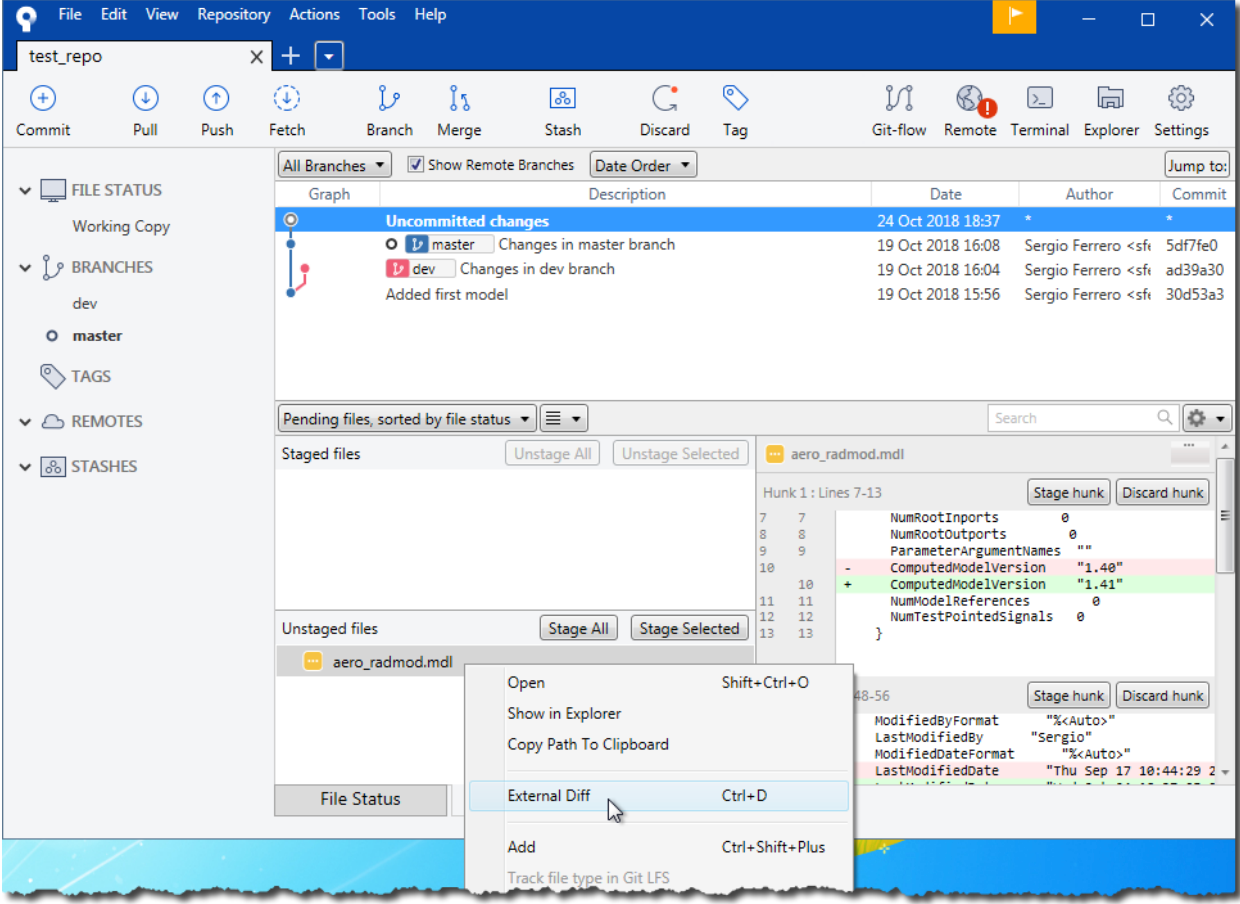
To see the differences between two versions of a model, click External Diff. SourceTree opens SimDiff. The picture shows this for an unstaged file compared with the copy in the repository.
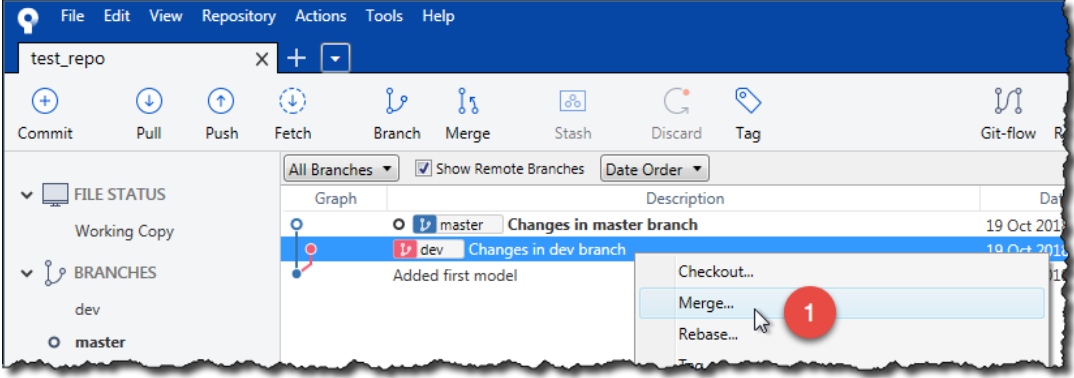
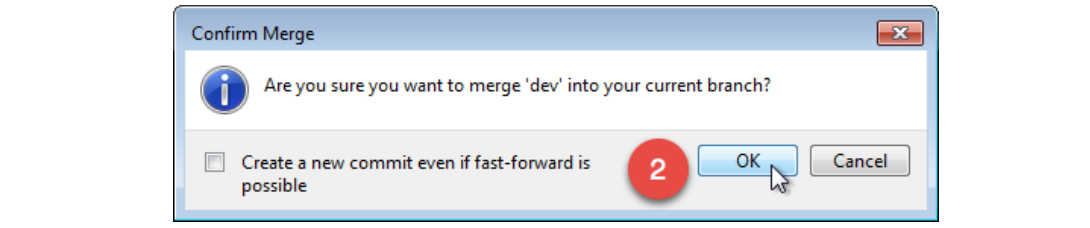
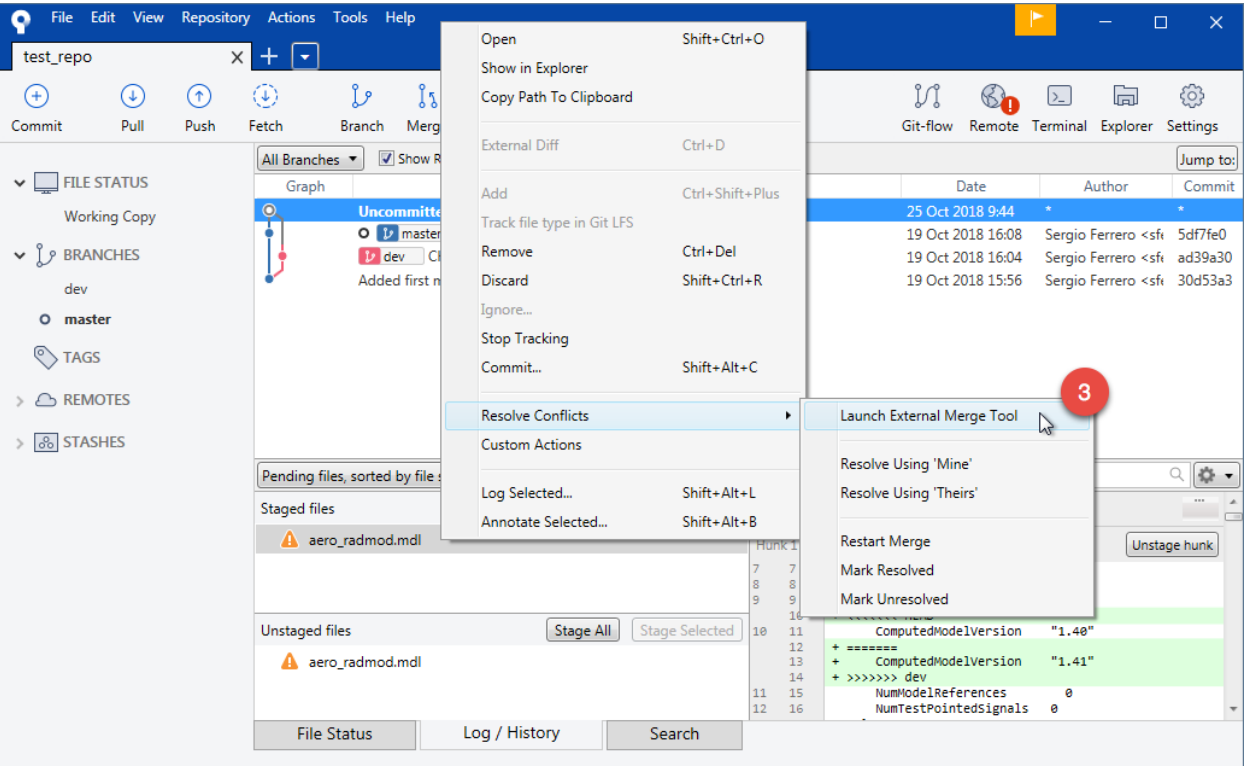
SimDiff also launches when SourceTree finds a merge conflict. The steps below merge a branch into the branch that is checked out. Right-click the branch to merge and follow the pictures.
When you have a merge conflict, select the Uncommitted Changes branch, right-click the conflicted file, and select Resolve Conflicts, then Launch External Merge Tool.
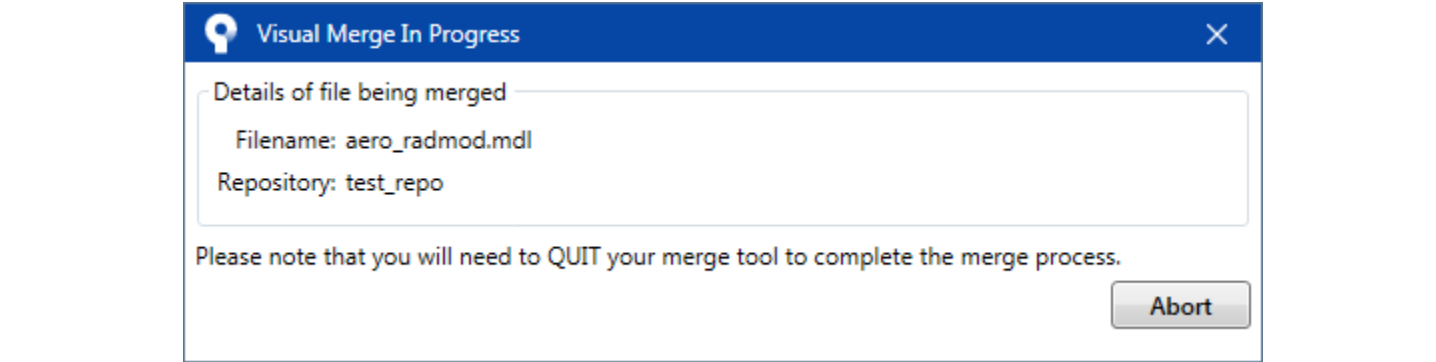
SourceTree shows the following dialog and opens SimDiff to merge the changes.
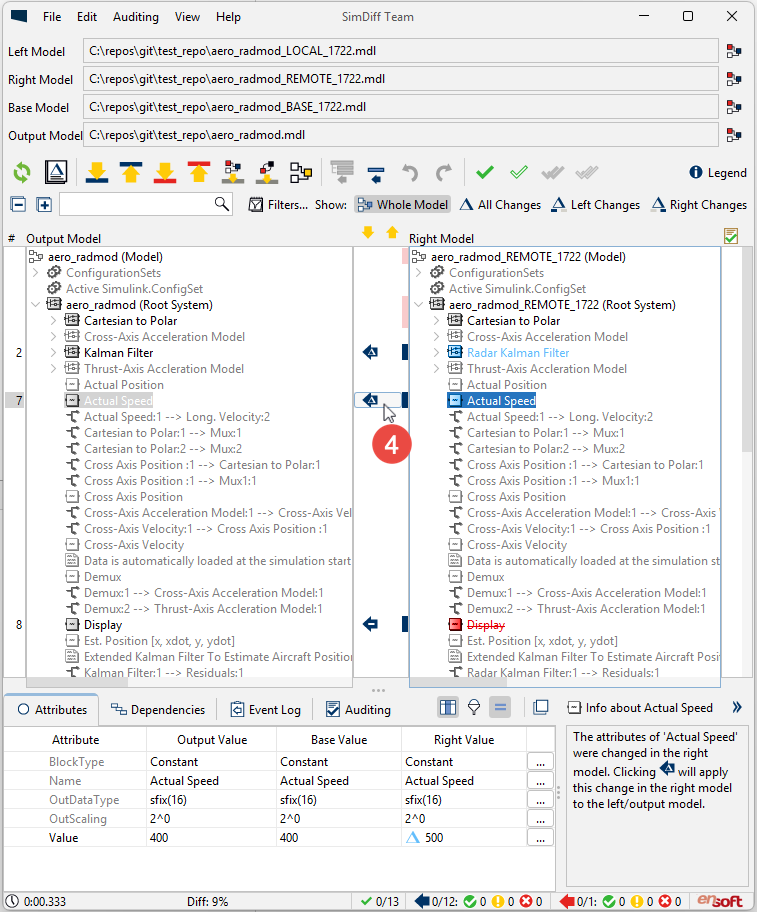
Use SimDiff to merge the changes. When you are done, save the model from the Simulink window and close SimDiff.
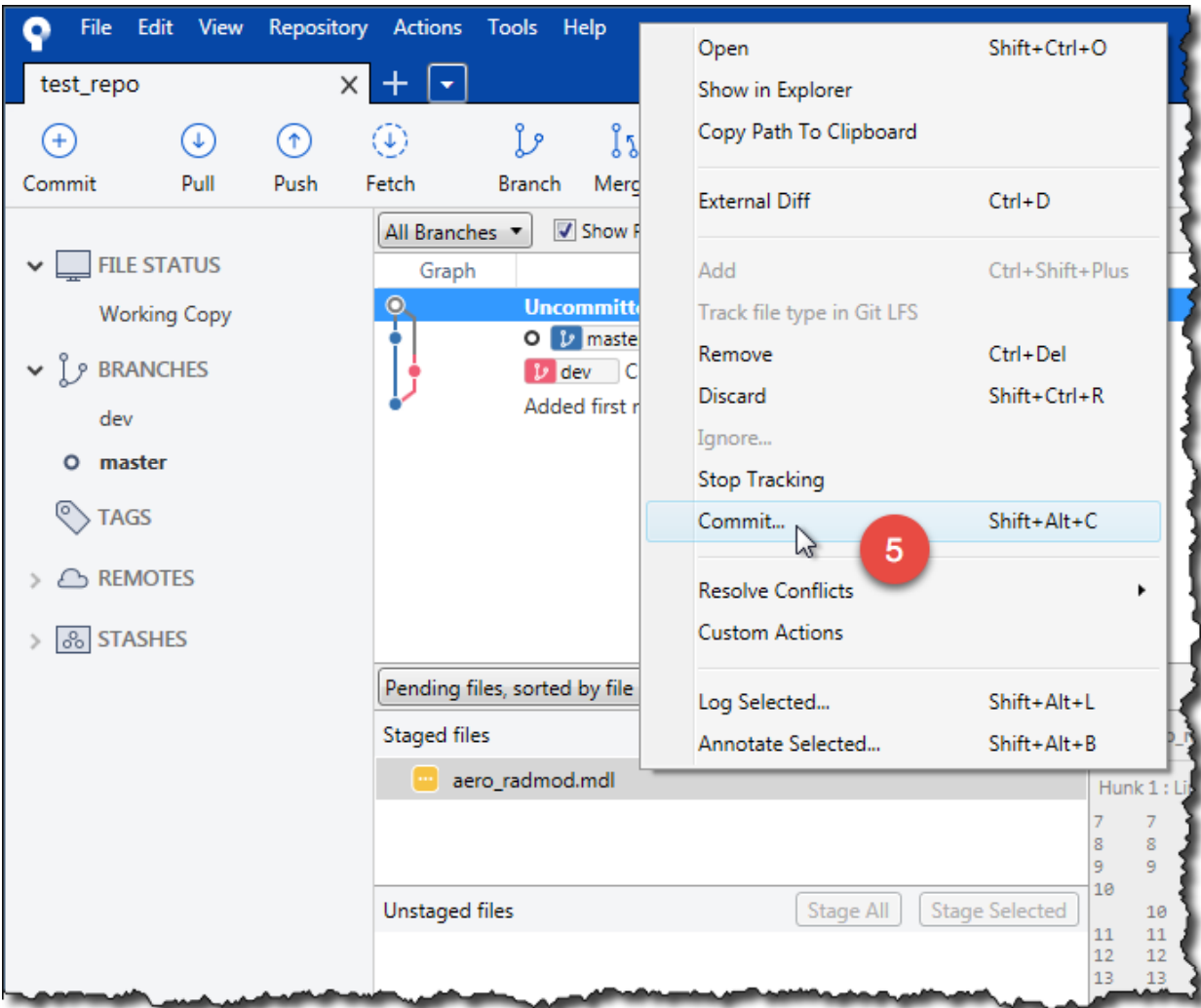
Select the Uncommitted Changes branch, right-click the merged file, and commit it.
Using another client? See Version Control Setup.
Have a question or want us to fix something?
Thank you.
We have your note about this page.