
4.3 Gather Corroborating Evidence
4.3.1 Dashboard
The Dashboard is a user interface to view results of canned analyses contributed by RULER. Currently the RULER Dashboard contributes “Properties” and “Smells”. A property is something an analyst should be aware of during an audit (ex: violations of closed world assumptions) whereas a smell is a stronger heuristic that an analyst should prioritize investigating. Whether or not a result is computed and populated in the Dashboard is controlled in the Toolbox Commons (Analyzers) submenu of the Atlas Toolbox preferences menu.
To open the Dashboard view, navigate to Window -> Show View -> Other… -> Atlas Toolbox -> Dashboard.
Figure 9 shows the Dashboard view. Initially, it shows only the results of properties/smells which have been computed. To compute results for a new property/smell, an analyst should check the box beside Search. This will list all the available properties and smells. Select the property/smell and click on it to expand. Then click Show All Results to compute the results and show them.
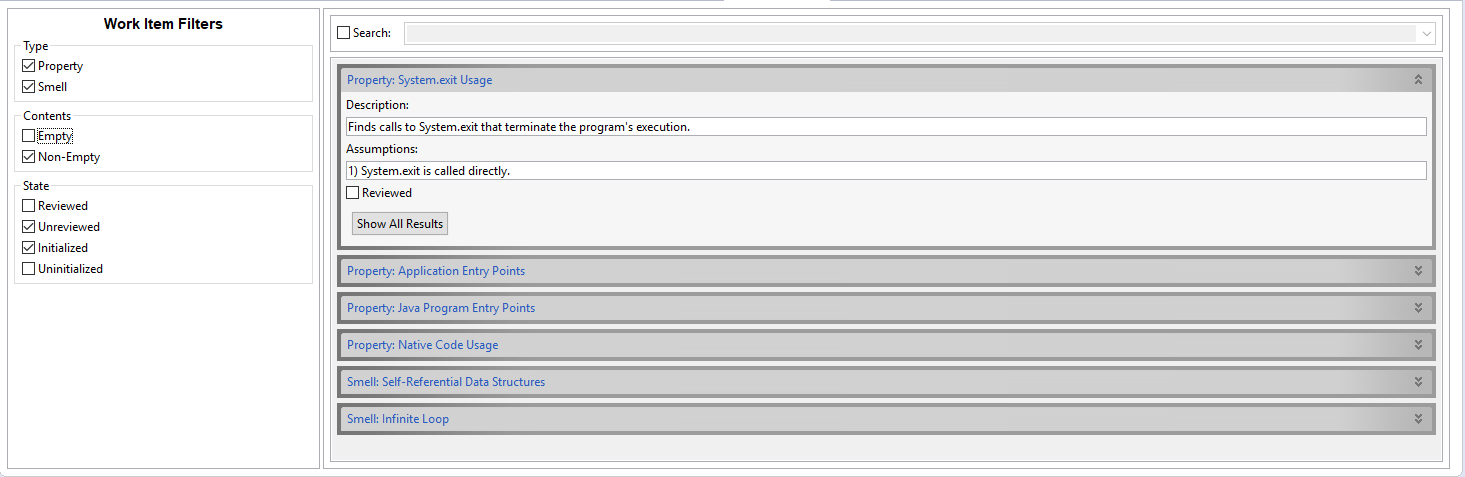
The “Properties” and “Smells” provided by the dashboard are as follows.
1. Cyclomatic Complexity
The Dashboard provides the cyclomatic complexity of methods. Using the smell, methods with high cyclomatic complexity are detected.
2. Recursive Functions
The Dashboard provides a smell to call attention to recursive functions in the given app. This smell alerts the analyst about the presence of recursive functions. The analyst can then combine this knowledge with other tools (LCG, PCG etc.) to decide if there is a vulnerability.
3. System.exit Usage
The Dashboard can find methods with System.exit usage. System.exit() causes the app to terminate execution and stop all threads. This can leave a client instance waiting forever and calls for attention of the analyst. This smell exactly does that.
4. Self-Referential Data Structures
The Dashboard provides a smell to find self-referential data structures in the given app. A self-referential data structure has fields of the same type and can grow very quickly when used in a loop. This also increases the cost (space and time) of processing the information stored in such data structures. In practice, we observed these causing vulnerabilities, especially AC vulnerabilities. Hence, the analyst should be alerted about the presence of self-referential data structures which is what this smell does.
5. Deeply Nested Loops
The Dashboard provides a smell to find loops with (local) nesting depth ≥ 4. The nesting depth is also provided in the Loop Catalog view for all loops.
6. Infinite Loop
The Dashboard provides a smell to find certain classes of infinite loops (result of termination condition is constant e.g. while(true)). Presence of infinite loops is an obvious indication of a potential AC vulnerability. Thus, the analyst should be alerted of their presence. An analyst can also find them using the Loop Catalog. Since this is an often used smell, it is provided as a canned analysis.
7. Executors.newFixedThreadPool Usage
The Dashboard provides a smell to find calls to Executors.newFixedThreadPool. Fixed size thread pools are of interest for AC vulnerabilities. If all threads can be kept busy, it can lead to blocking a benign request.
8. Order-Preserving Data Structures
The JDK provides various data structures, which can be used to store data while maintaining an ordering, e.g. Lists, TreeSets, etc. The Dashboard finds such data structures in the given app. While such data structures do not cause vulnerabilities by themselves, we observed vulnerabilities that depend upon the order in which elements stored in the data structures are processed. For such vulnerabilities, presence of order-preserving data structures is a necessary condition. This smell brings such vulnerabilities under the radar of the analyst and they can then confirm the presence of this class of vulnerabilities by analyzing the code that processes these data structures using tools such as the IPCG (PCG Builder).
Note: Arrays are not considered.
9. Reflection Usage
The Dashboard provides a smell to find all Java Reflection usage via java.util.reflection in the app. This alerts the analyst to hidden behaviors, as reflection can be used to obfuscate method invocation and data transfer.
10. Random Usage in Loop Body
The Dashboard provides a smell to find loops, which reference the Random API. This was developed in response to STAC challenge applications where loop iteration bounds were obfuscated using random. For example, the following loop computes the same result as it would if the inner loop conditions were omitted, but has a slightly increased runtime because a quarter of the inner loops will fail the second condition. This pattern interferes with classifying the loop bounds as monotonic, and increases the apparent loop nesting. Therefore, this smell serves a different purpose, as it does not detect vulnerable loops: it helps to find loops, which are not vulnerable but are likely to raise false alarms. Such loops should be filtered out from further analysis and this smell helps to do so.
while (i < length) {
    while (i < length && random() < 0.75) {
          i++;
    }
}
11. Application Entry Points
The Dashboard finds all the methods, which serve as entry points to the given app. Entry points typically serve as the points of interactions between the attacker and the app. Thus, it is common to begin the analysis at the entry points. This property is computed to find the application entry points for the analyst.
Since the apps typically use various web frameworks, the web framework handlers must also be considered as entry points. RULER uses heuristics to recognize the handlers of the web frameworks. In particular, RULER recognizes the following as application entry points:
- java main methods in the app
- javax.
servlet. http. HttpServletRequest (Java servlet requests) - com.
sun. net. httpserver. HttpHandler (Sun Http request handlers) - Netty channelRead0() method (Netty framework)
- Methods annotated with org.
springframework. web. bind. annotation (Spring framework) - Methods that override spark.Route() (Spark framework)
- accept() methods in java.net.Socket() (Socket connections)
12. Class Loader Usage
The Dashboard finds calls to Class Loaders, for reasons similar to reflection usage - it can be involved in obfuscation of class usage.
13. Native Code Usage
The Dashboard can find all the uses of native methods in the app. This may indicate hidden behaviors, as native code can potentially do anything, and is not otherwise visible to a purely bytecode-based analysis.
14. Java Program Entry Points
The Dashboard can find all Java main methods in the given app.
15. Serialization Usage
Dashboard can find all uses of the Serializable interface. In practice, we observed improper handling of serializable objects causes vulnerabilities. E.g. XML bomb is a well-known attack that occurs when an app tries to serialize a malicious XML document. This smell alerts the analyst of the presence of serializable objects in the app. This brings the known attacks in scope and they should be tested first.
16. Process Usage
The Dashboard can find calls to all the methods that allow the application to run a shell command, as this may represent hidden behavior of interest to an analyst.
4.3.2 PCG Builder
The PCG Builder interface is a utility for selecting events across multiple functions and computing an interprocedural PCG (IPCG). For basic use, simply select the events of interest and press the “Show PCG” button. For advanced use, an analyst may select ancestor functions and expandable functions for additional context.
To open the PCG Builder view, navigate to Window -> Show View -> Other… -> Atlas Toolbox -> PCG Builder.
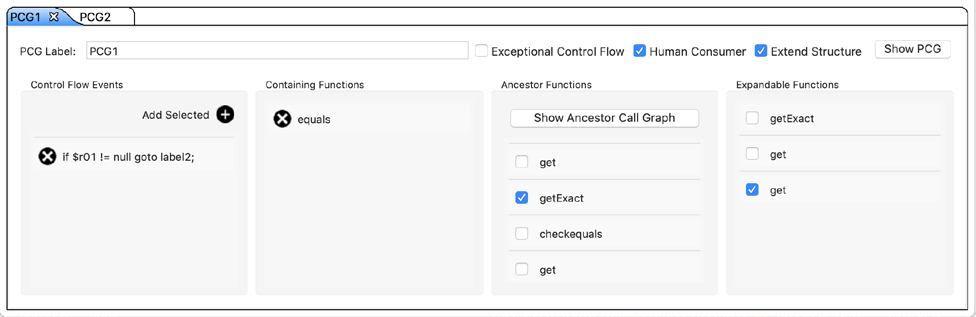
Exceptional Control Flow denotes the control flow paths due to exception handling. Select this option to include exceptional control flow paths in the computation of PCG.
Human Consumer: When an IPCG is created, the call sites of the functions are included as events. As per the definition of control flow paths, the return nodes of the functions should be redirected back to the function containing the call sites. This though creates unnecessary information that puts cognitive burden on the human analyst. To reduce this we provide the option to not include the redirection edges and make IPCG more suitable for a human consumer.
Extend Structure: The PCGs created contain the control flow nodes and edges that form the relevant control flow paths corresponding to the selected events. These events are contained in various functions and the functions themselves are contained in different Classes, the Classes are contained in different packages and so on. This is the extended structure of the PCG. The extended structure need not be shown depending upon the analyst’s preference. This option enables/disables extension of the structure.
Ancestor functions are functions that exist in the reverse call graph of any functions containing selected events. Selecting ancestor functions increases the size of the IPCG, but adds additional calling context to the result.
Expandable functions add call sites within the ancestor functions along the path to the events. Once ancestor functions are selected, functions may be expanded using the checkboxes under “Expandable Functions”. Call sites to functions that lead to events are implicit events in an IPCG. By default, the implicit events are elided in functions that do not contain explicit events and the entire function is collapsed to a single node in the resulting PCG. However, these collapsed functions can be expanded by the PCG Builder interface to reveal PCGs of implicit events for each expanded node.
The PCG Builder also contains a new PCG instance button on the menu bar, which creates a new tab. This way the PCG builder can maintain the state of several instances of IPCGs.
4.3.3 Loop Subsystem Interactions Builder
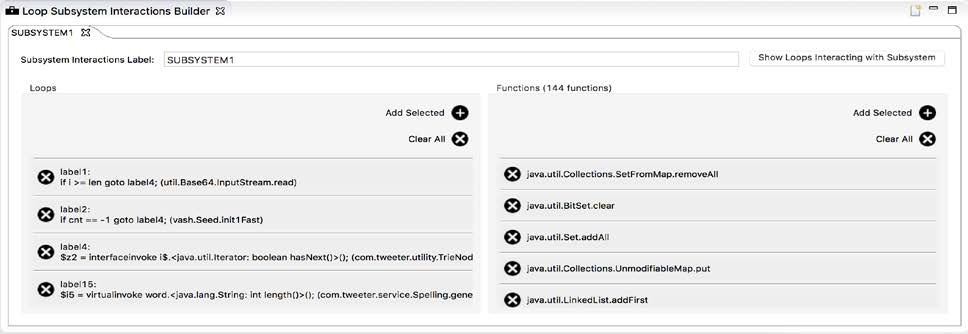
The Loop Subsystem Interaction Builder allows an analyst to specify a set of loops and a set of functions as input, and select only the loops that have a call interaction with at least one of the input functions. For example, to select a set of loops that interact with collection APIs, an analyst can first display, select the loops to be filtered, and add them to the left pane “Loops” (see Figure below). To add the functions, the analyst can run the shell command to first display all the collection subsystem APIs, and then add all (or a subset of) the displayed nodes to the right pane “Functions” in the builder. Clicking on “Show Loops Interacting with Subsystem” displays the loops that interact with the selected loops via the call graph.
show(nodes("COLLECTION_SUBSYSTEM").contained.nodes(XCSG.Method))To open the Loop Subsystem Interaction Builder, navigate to Window -> Show View -> Other… -> Atlas Toolbox -> Loop Subsystem Interaction Builder.
4.3.4 Decompiler view
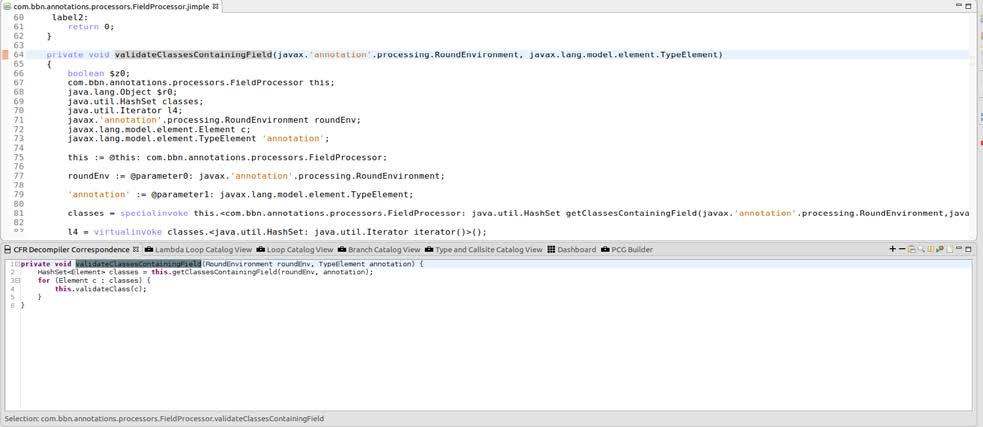
The Decompiler view provides two-way correspondence between Jimple code and decompiled source code to enhance the comprehension of bytecode. By selecting a portion of a Jimple code or Atlas graph element corresponding to a method, the Decompiler view will output the decompiled source code corresponding to the selected Jimple code or Atlas graph element.
The view uses the Class File Reader (CFR) tool to decompile Java bytecode. The view works on a per-method basis, i.e., when an analyst selects a method, it decompiles only the source code for that method on the fly. Figure 12 shows a screenshot of the CFR Decompiler View
4.3.5 Filter View
The Filter View allows an analyst to specify a “root set” of nodes and edges as input and then selectively apply filters to the set to produce a subset of the original input. The interface loads RULER-contributed filters and automatically determines which filters are applicable to the given input sets.
To open the Filter View, navigate to Window -> Show View -> Other… -> Atlas Toolbox -> Filter View.
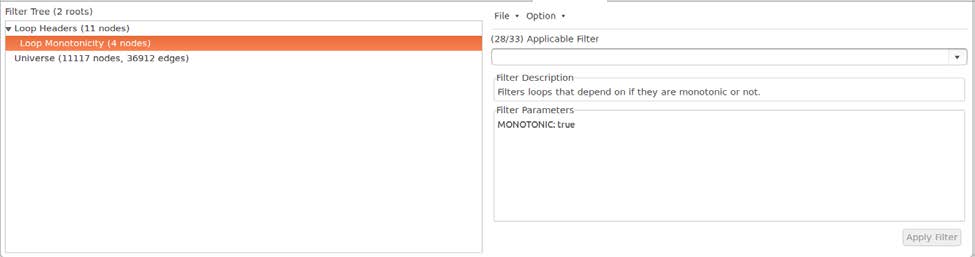
Additional details can be found online at: https://ensoftcorp.github.io/toolbox-commons.
4.3.6 Smart Views
RULER currently contributes the Smart Views listed in this section (by title). To open a Smart View, use the menu: Atlas -> Open Atlas Smart View. Then select a specific view using the combo box on the bottom of the Smart View. Smart Views respond to selections from other graphs or from the text-based Jimple editors. The main contributed Smart Views include:
- Code Painter: The Code Painter interface and Control Panel are an advanced Smart View implementation that allows additional control over Smart View behaviors and styling information. Two new concepts are introduced: 1) a Code Painter and Code Painter Control Panel and 2) a Color Palette. The Code Painter interface is an extensible interface for defining new Code Painter Smart Views. The Smart Views are controlled by selections and the Code Painter Control Panel. Color Palettes are styling logic that can be applied individually or as a layer in the active styling of the Code Painter view.
- Enhanced Loop Call Graph: Overview of loops in the program, in terms of loop headers and call sites. Edges in an Enhanced Loop Call Graph link 1) from CallSites to possible target Methods, and 2) from Methods to Loop and CallSites in the body. Edges represent nesting levels. For example, a CallSite in a Loop will be reachable along a path: Method > Loop > CallSite. See also: LCG.
- Loop Call Graph (LCG): Overview of loops in the program, in terms of the call graph. See also: LCG.
- Control Flow Graph (CFG): Overview of Control Flow within a Method.
- Control Flow Graph with Exceptional CF (Ex CFG): Overview of Control Flow and Exceptional Control Flow within a Method.
- Projected Control Graph (PCG): Create a PCG with respect to events. See also: PCG.
- PCG: Events = {Loop Headers, CallSites to LCG}: Similar to the view Projected Control Graph (PCG), with the automatic inclusion of events based on the Loop Call Graph (LCG).
- Taint: View dependencies based on Taint edges. RULER currently defines Taint edges as 1) Local Data Flow, and 2) edges from actual arguments to CallSites, for CallSites, which resolve to the JDK library (which has the effect of treating the CallSites as Operators). See also: Taint.
- Taint -> PCG: Given a subgraph based on Taint, create a PCG. See also: Projected Control Graph (PCG), Taint.
- PCG + Condition Flows: Include data dependencies of conditions for a PCG. See also: Projected Control Graph (PCG), Taint.
- Loop Terminating Conditions (LTCs): see LTC.
- Loop Termination PCG: To create a Projected Control Graph that helps to quickly understand the structure of a loop. See also: Projected Control Graph (PCG)
- Loop Termination Dependence Graph (TDG): Show data flow dependencies of termination conditions of a given loop.
- Subsystem Interaction View: To help understand the interactions a loop, a method, a control flow node or a call site has with a subset of the pre-defined subsystems. See also: Subsystem Interaction Tagging.
- Subsystem Interaction PCG View: To help understand the interactions a loop or a method has with the rest of the app or one of the pre-defined functional categories of APIs in the JDK (subsystems). See also: Subsystem Interaction Tagging.
- Loop Nesting View: To understand the nesting relationships between loops in a selected method, or loops contained within a selected loop header.
- Reachable Loops View (From/To Input): To identify loops reachable from/to a selected application input or variable.
- Loop Body View: To understand the control flow within a selected loop.